Carrier Manager Overview
The Carrier Manager allows you to view and update all existing carrier records and create new ones. This guide helps you understand the Carrier Manager interface and make the most of the available features.
Open Carrier Manager
To open the Carrier Manager screen:
- Click on the Plan Design in the left navigation menu.
- Select Carrier Manager from the dropdown.
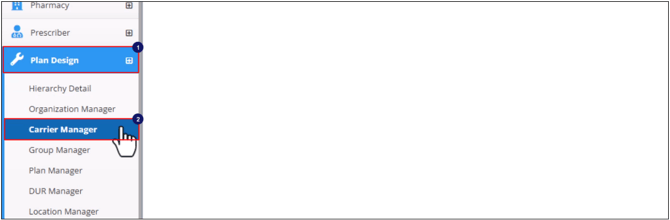
The Carrier Manager and Carrier Manager Library will appear on the screen.
Filter Carriers
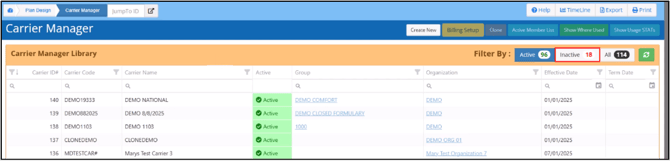
The Carrier Manager screen displays only the active carriers by default when opened for the first time.
You can view the inactive carriers by clicking on Inactive button besides the Filter-By option.
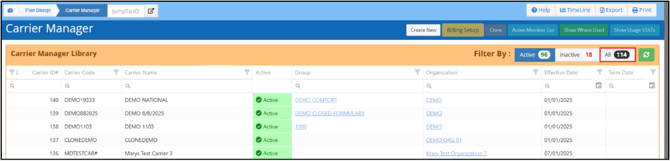
To view all carriers, click All besides the Filter-By option.
Refresh Carrier Library Grid
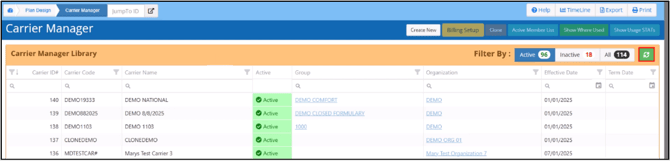
Click on the Refresh button to refresh the carrier library grid. This will update the grid with the most recent carrier entries.
Carrier Library Grid
The Carrier Library Grid provides additional details about each carrier’s configuration. It has the following columns:
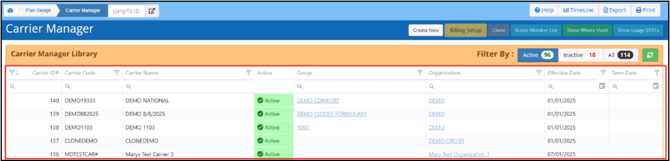
The Carrier Library grid also displays the carrier code, name, and its status, which is based on the configured effective and termination dates.
Search, Sort and Filter Carriers
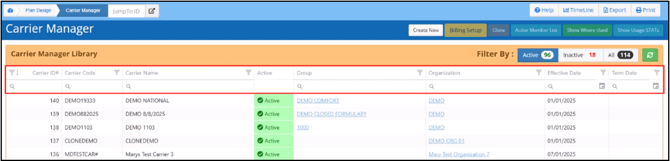
You can use the column header options to sort, filter and search the library.
Open Carrier Configuration Screen
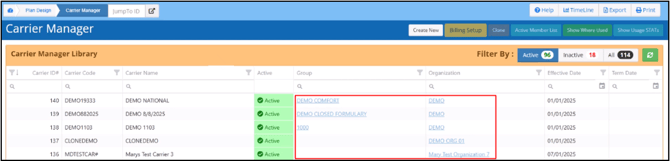
Click on the highlighted link to open the related configuration screen in a new tab.
View or Update a Carrier Configuration
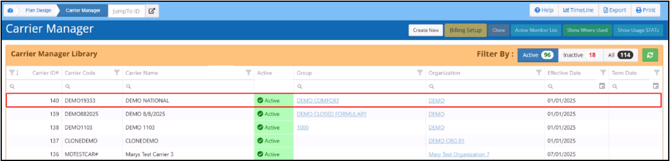
Select a carrier record to view and update its configuration.
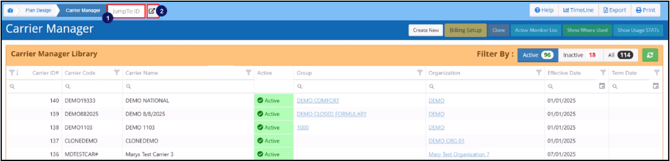
Jump-to-ID
You can search for a carrier record using the Jump-to-ID option as follows:
- Enter the Carrier ID number in the Jump-to-ID field in the top left corner.
- Click on Go-To button.
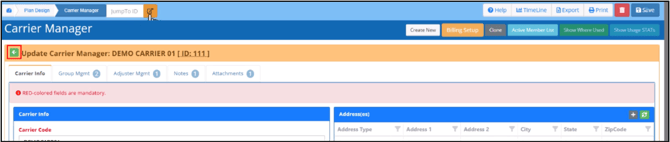
Return to Carrier Library
Click on the Green Back Arrow to go back to the Carrier Library.
Action Buttons
When you open a carriers' configuration screen, the buttons in the top right corner get enabled.
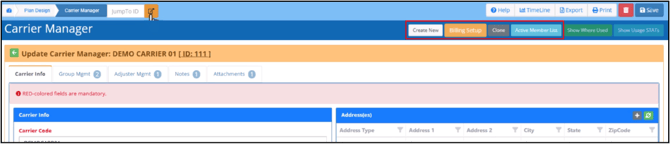
Create New Button
This button opens a new Carrier Configuration screen.
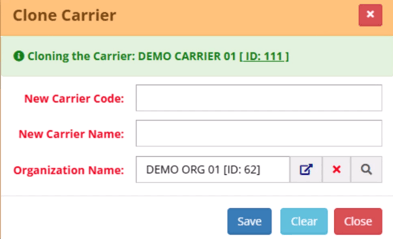
Clone Button
This button allows you to duplicate an existing carrier and use it as a template. When a carrier is cloned, you will be prompted to enter a new carrier code and carrier name and associate it with an existing organization.
Billing Setup
This button opens the Billing Manager’s Update Billing Cycle Configuration screen for the current carrier. If the carrier does not have an associated billing cycle configuration, a prompt will appear in the bottom-right corner of the screen to create a new one. You can also select No to cancel.
Active Member List
This button shows all members associated with the carrier. You can specify a different carrier in this screen and show their member list by clicking on the Magnifying Glass icon of the selected carrier field.
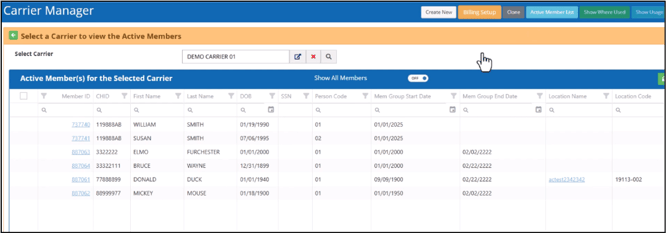
Show All Members
This toggle allows you to show or hide inactive members.

Save Button
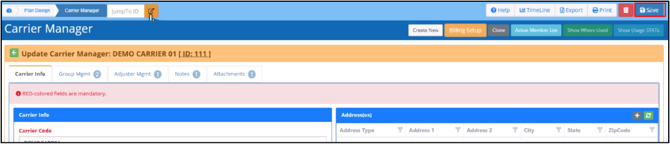
This button allows you to apply changes you have made to the carrier record or add newly configured carriers to the library.
Delete Carrier
To delete a carrier from the carrier library, click on the Trash icon.
Tabs
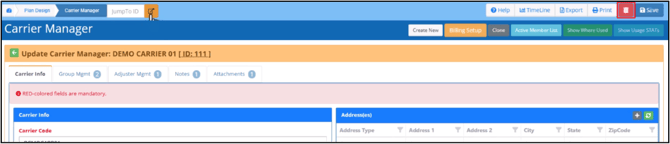
The Carrier Manager screen has multiple tabs.
Carrier Info
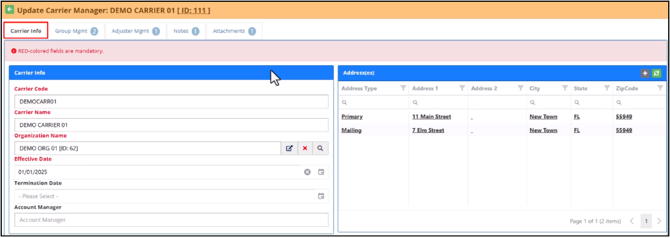
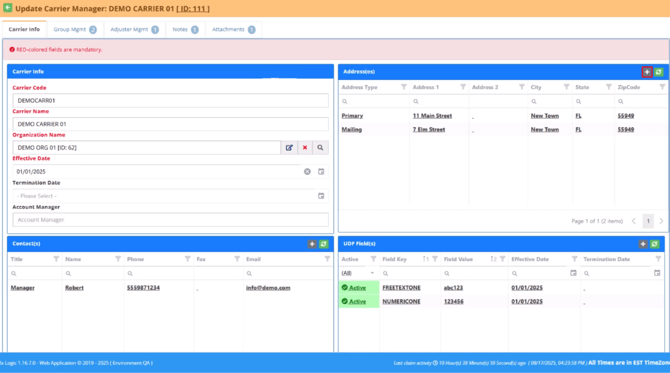
This tab contains the carrier’s primary configuration details. The different sections in this tab contain additional details and configurations.
Add New Addresses, Contacts, and UDFs
You can add new addresses, contacts and user-defined fields by clicking the Plus (+) icon in the top right corner of each section. The configuration fields will display below.
Update or Delete Carrier Contact, Address or UDF Configuration
Select a record to view its configuration and update or delete it.
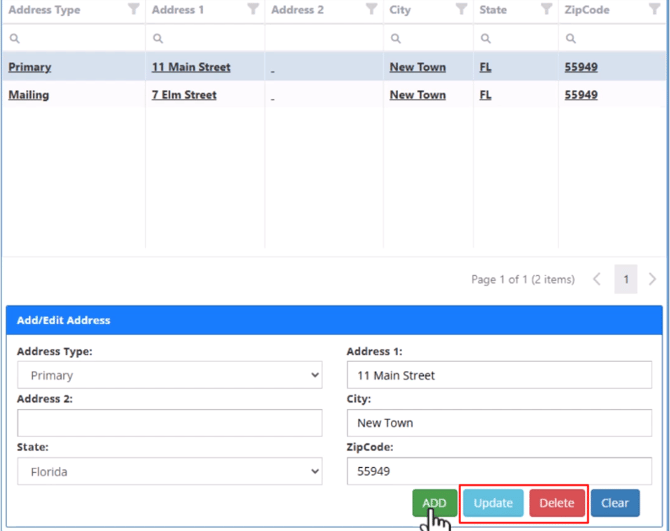
Add a New Line to the Library
Select “Add” to add a new line to the library using the details in the configuration fields.
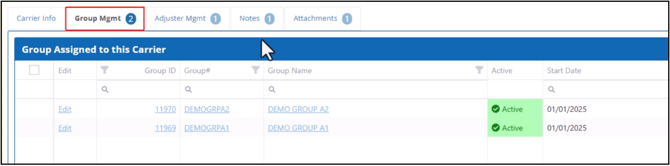
Group Management
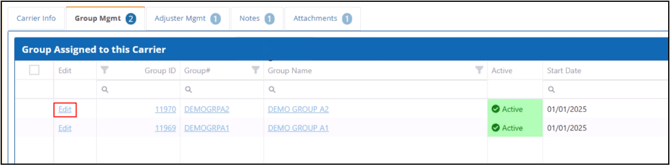
This tab displays all groups assigned to the carrier.
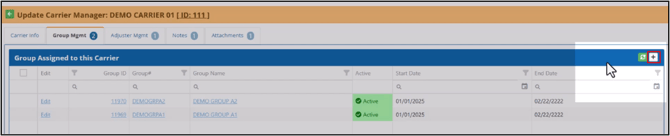
Assign a New Group
To assign a new group, click on the Plus (+) icon in the upper-right corner.
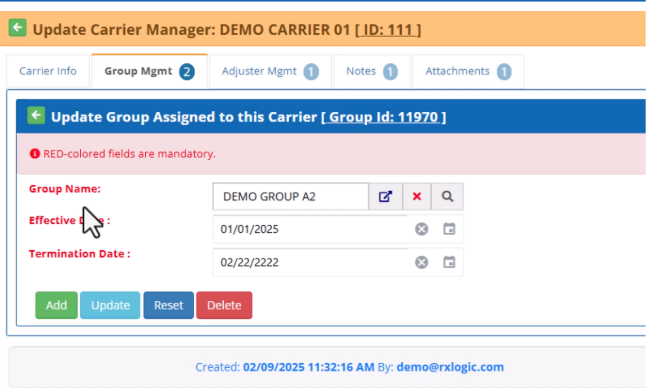
Update Existing Group Assignments
Click on Edit to update existing group assignments.
Adjuster Management
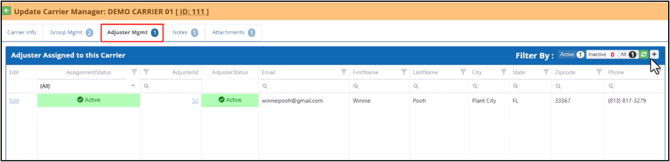
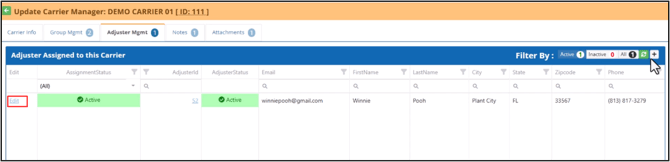
The Adjuster Management tab displays adjusters assigned to the carrier.
Add New Adjuster
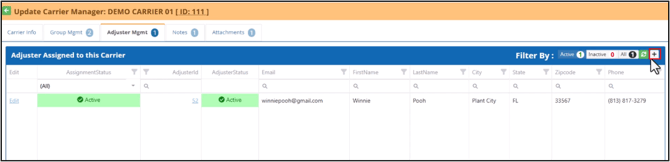
Click on the Plus (+) icon to add new adjusters.
Update Existing Carrier Adjusters
Click on the Edit option to manage and update the carrier’s adjusters.
Notes
The Notes tab contains additional notes or remarks about the carrier.
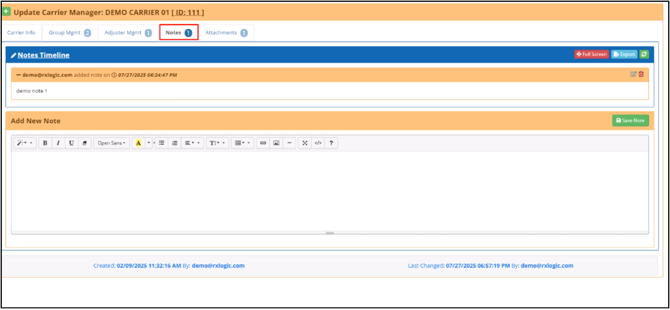
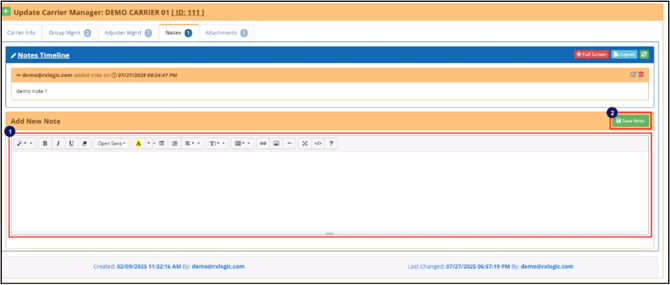
Add New Note
- Enter the note in the textbox.
- Click Save Note.
Edit or Delete Existing Notes
To edit or delete existing notes, click on the Edit or Delete button in the upper-right corner of each note.

Export Notes
The Export button allows you to save all the notes to a Word document.

Attachments
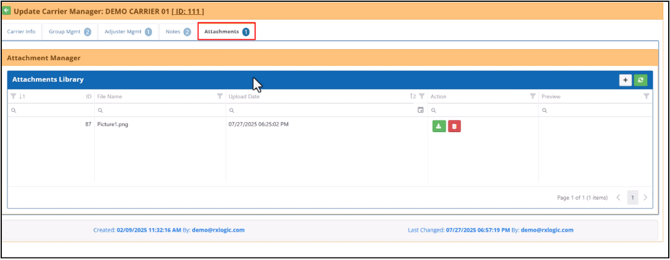
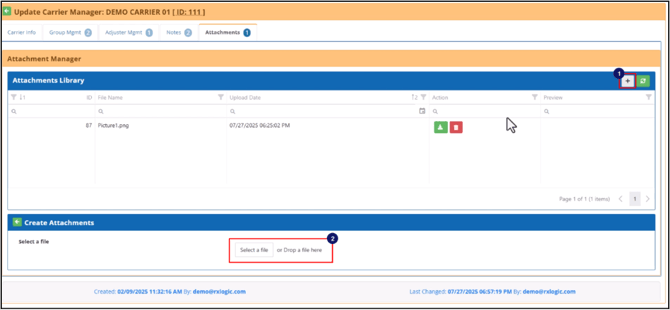
The Attachments tab allows you to upload files associated with the carrier.
Upload an Attachment
- Click on the Plus (+) icon in the top right corner of the attachments library.
- Drag and drop or select the attachment into the Create Attachments section.
Download an Attachment
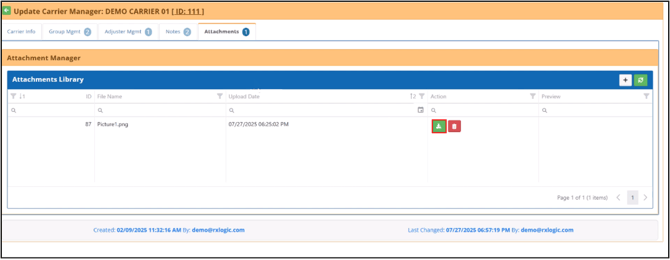
You can download an attachment by clicking the Download button.
Delete an Attachment
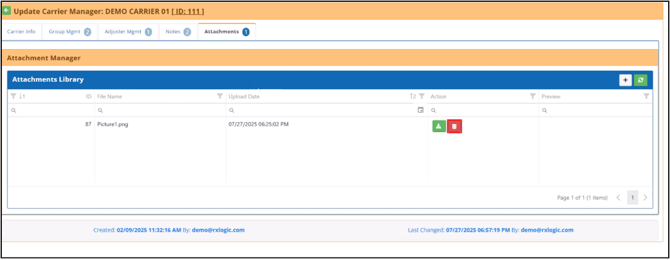
To delete an attachment, click on the Delete button.
Access Help
Click on the Help button in the upper right corner of the screen to access help.

View Change History
To view the history of all changes made to the carrier manager, click on the Timeline button in the upper-right corner of the screen.

Export Carrier Library Grid
To export the carrier library grid to an Excel file, click on the Export button.

What would you like to learn about next?