
Most adjudication platforms force you to look up claims one at a time. This slows down your team, frustrates pharmacies and members, and leads to inefficiencies. The RxLogic’s Claim Activity module under the Claims module revolutionizes how you track, manage and search for claims. It provides you with a real-time view of the adjudication process as the claims are submitted. This helps you save time, boost efficiency, and empower your team.
This guide demonstrates how you can make the most of the Claim Activity dashboard.
View Claims in Real Time
When you go to the Claim Activity tab, the live real time window updates as claims are adjudicated, showing claim status, such as paid, rejected, or reversed. This negates the need of waiting 24 hours for data refreshes.
You can also view the adjudication results as soon as a new claim is submitted. This enables you to quickly identify and fix any issues as soon as they occur.
Filter Claims
As new claims come in, the Claim Activity grid has multiple options for filtering the claims. You can filter them by pharmacy NCPDP, Rx#, member ID (CHID#) or drug info to quickly find what you need. It enables you to instantly access the recent claim histories.
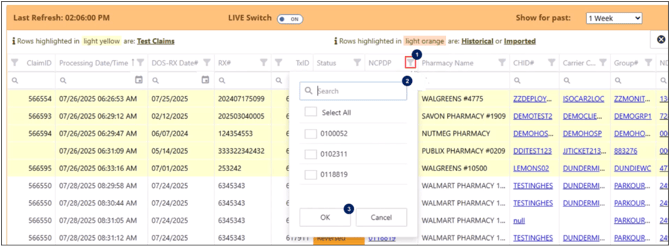
Search by Pharmacy Number
- Click on the filter icon beside NCPDP.
- Enter the pharmacy NCPDP in the search box.
- Click the box to the left of the NCPDP to select.
- Click OK.
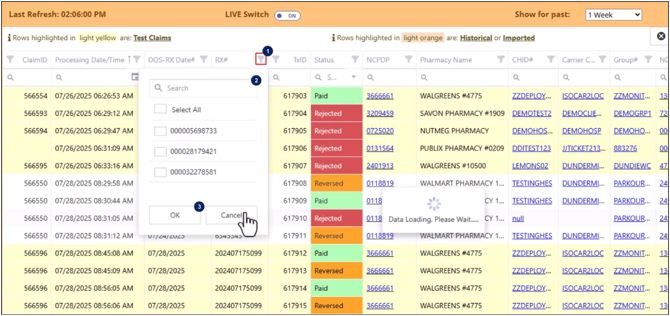
Search by Rx Number
- Click on the filter icon beside Rx#.
- Enter the Rx number in the search box.
- Click the box to the left of the Rx# to select.
- Click OK.
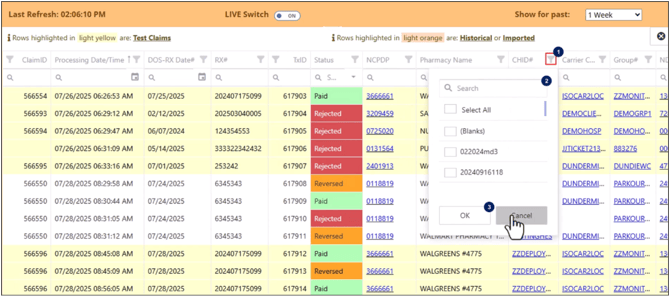
Search by Cardholder Id
- Click on the filter icon beside CHID#.
- Enter the member ID (CHID) in the search box.
- Click the box to the left of the member ID to select.
- Click OK.
View Claim Details
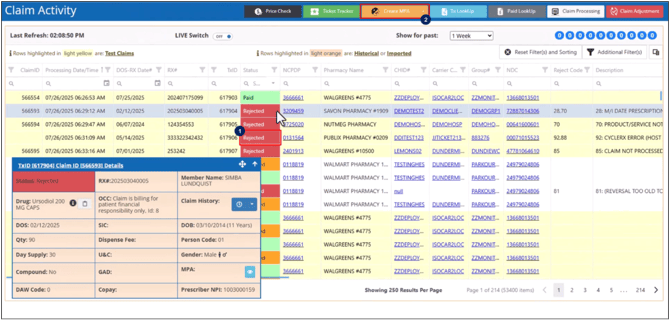
The Smart Tools tip in the floating Claim Details panel provides instant details on a selected claim. To access this panel for a claim, simply click on the claim to select it.
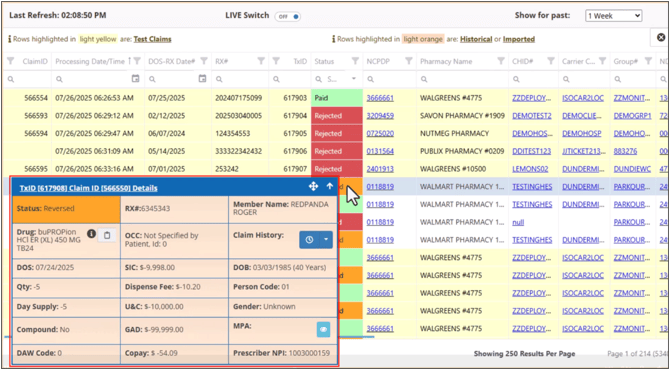
To expand or collapse this panel, click on the arrow annotated in the following image:
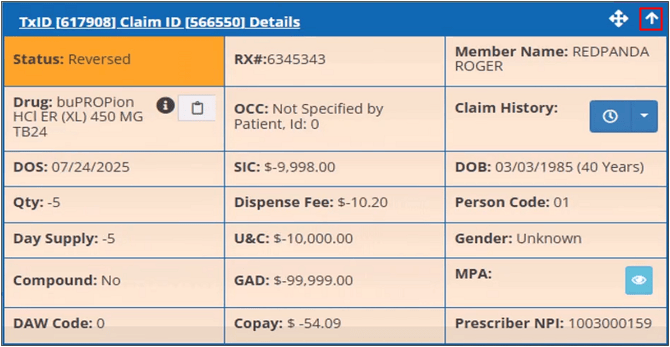
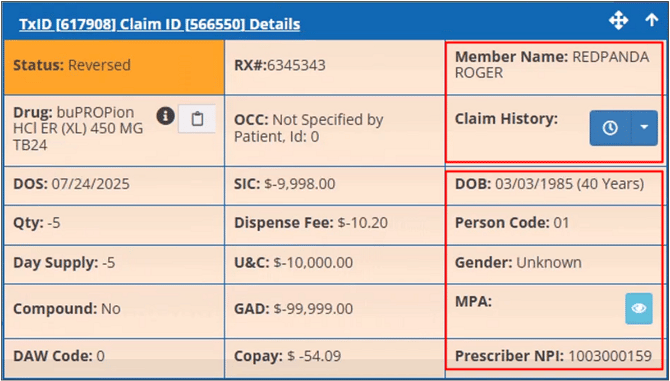
You can also open the member’s claims and member prior authorization (MPA) history from the claim details panel.
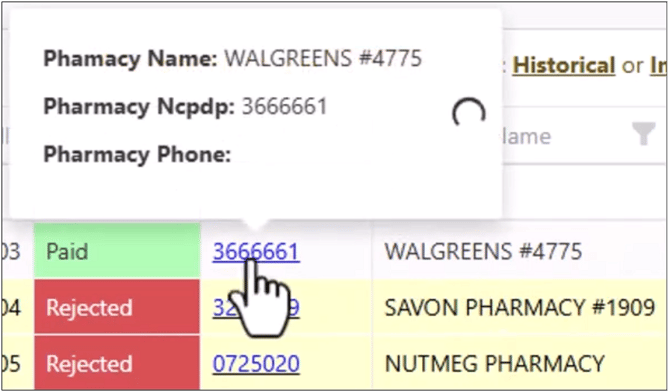
To view more details, hover over the fields.
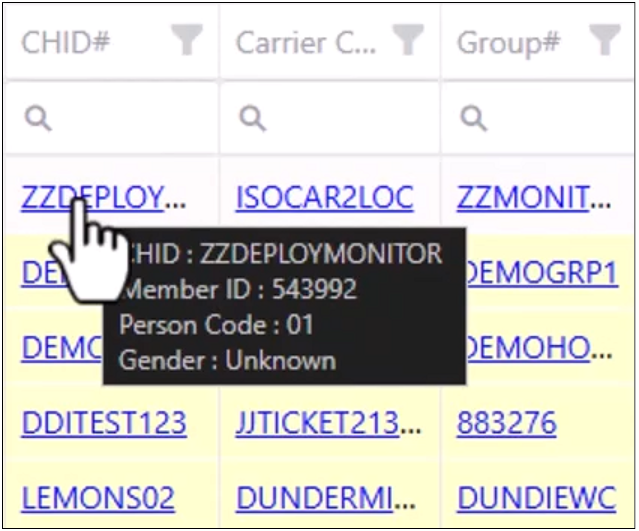
Click one of the hyperlinks to view the updating the record configurations screen.
Fixing Issues
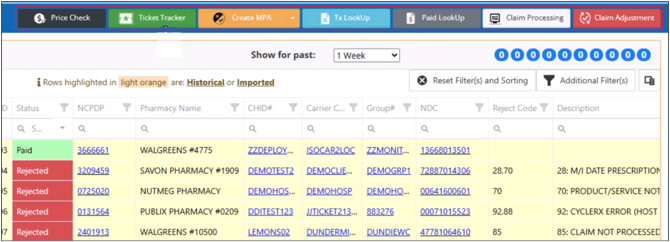
The Claim Activity screen allows you to quickly take actions and fix issues. You can overwrite an existing MPA, streamline claims, and open a ticket all from one place.
Create a New MPA
- On the Claim Activity screen, click on a Rejected claim to highlight.
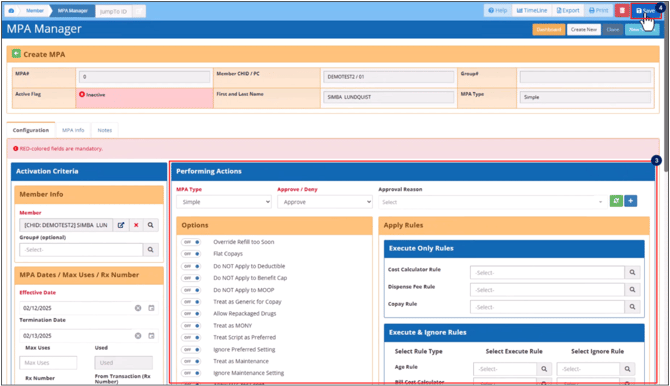
- Next, click the New MPA By GPI button to open the MPA Manager, Create MPA screen.
- Create MPA screen is prepopulated with the claim and member information.
- Add the member prior authorization parameters.
- Click Save.
What would you like to learn about next?