
RxLogic – Repricing Tool Introduction
RX Logic’s Repricing Tool lets you easily price claims data against different plan and pricing structures so you can effectively analyze price differentials and uncover more cost saving opportunities.
With this tool, you’ll gain more data-driven insights that will help you optimize plan configurations and ensure profitability, while meeting both client and member expectations.
This guide will walk through the Rx Logic’s Repricing Tool.
How to Use Repricing Tool?
The Repricing tool is one of the jobs you can configure in the Job Manager.
Reprocess New Claims Data
You can create different repricing jobs, and select one from the Job Manager library whenever you want to reprocess new claims data.
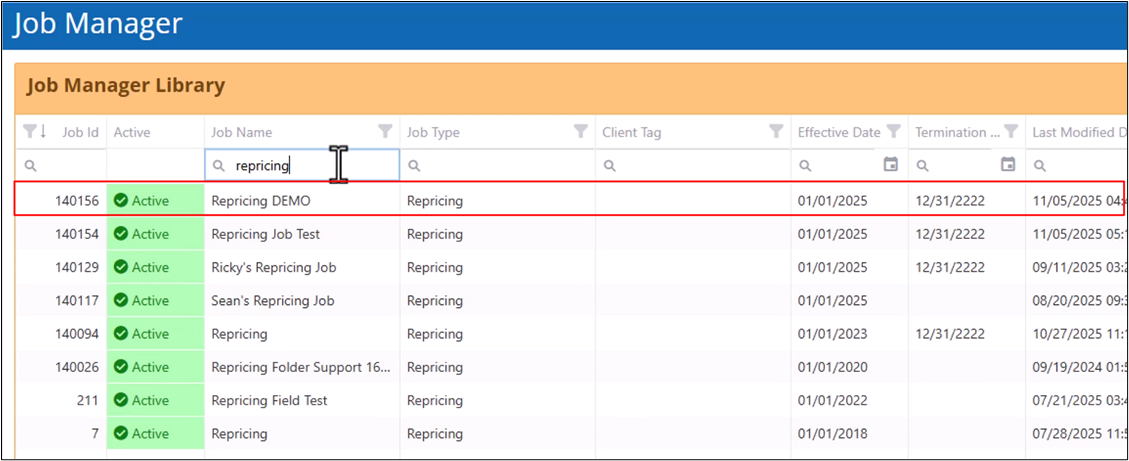
Running the Repricing Job
To run the repricing job, you need to create an input file which contains all the claims that you want to reprice.
The Input File
The Input File contains detailed claim information – such as group, member, pharmacy, service date, drug, and submitted buy and sell-side pricing data – saved as a CSV file.
The more data you add to this file, the more accurate the repricing results will be. If you have limited claim details, just use the default values and you will still get accurate results using real-world data from MediSpan’s drug pricing database.
Compare Pricing Results
You can reprice claims using the original date of service with updated plan and pricing structures. Then, run the same job using the current date to compare the pricing results.
Simulate Different Scenarios and Identify Opportunities
Changing the group’s plan design opportunities and adjudication rules lets you simulate different scenarios and identify opportunities to optimize costs.
Upload Input File
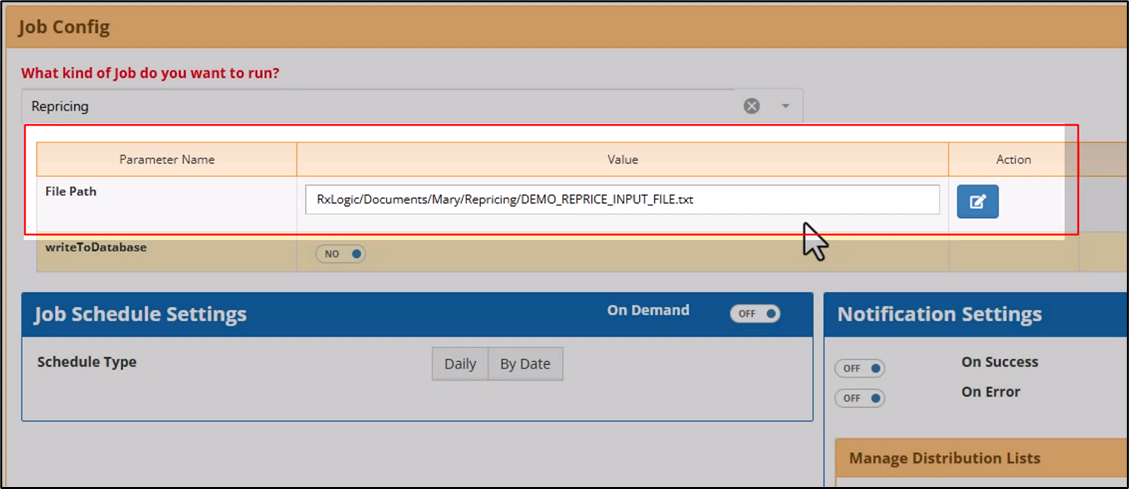
After creating the input file, upload it through the File Manager, and specify the file location in the Repricing Job’s File Path field.
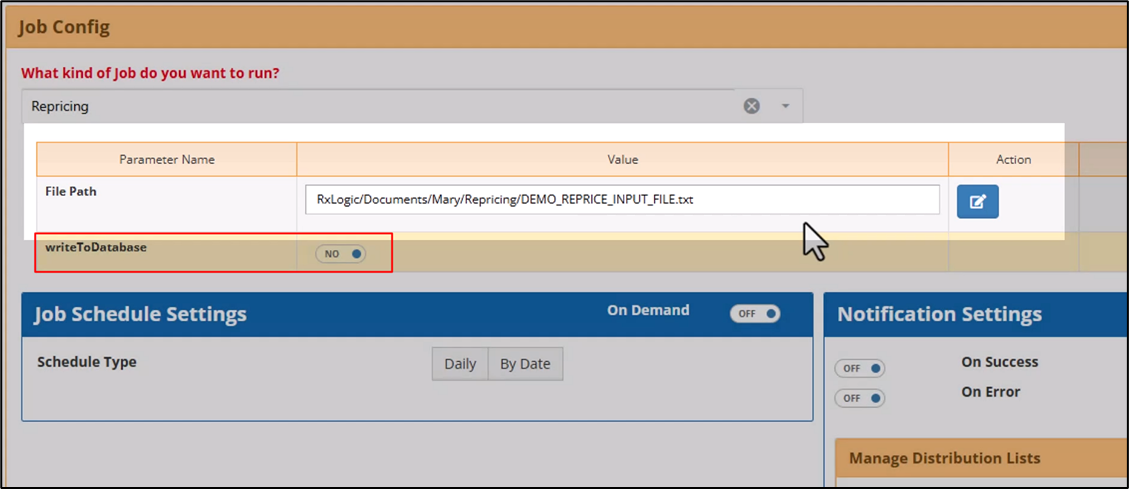
Write to Database Toggle
Switching on the Write to Database toggle creates new transaction records which you can analyze further in the Transaction Details screen.
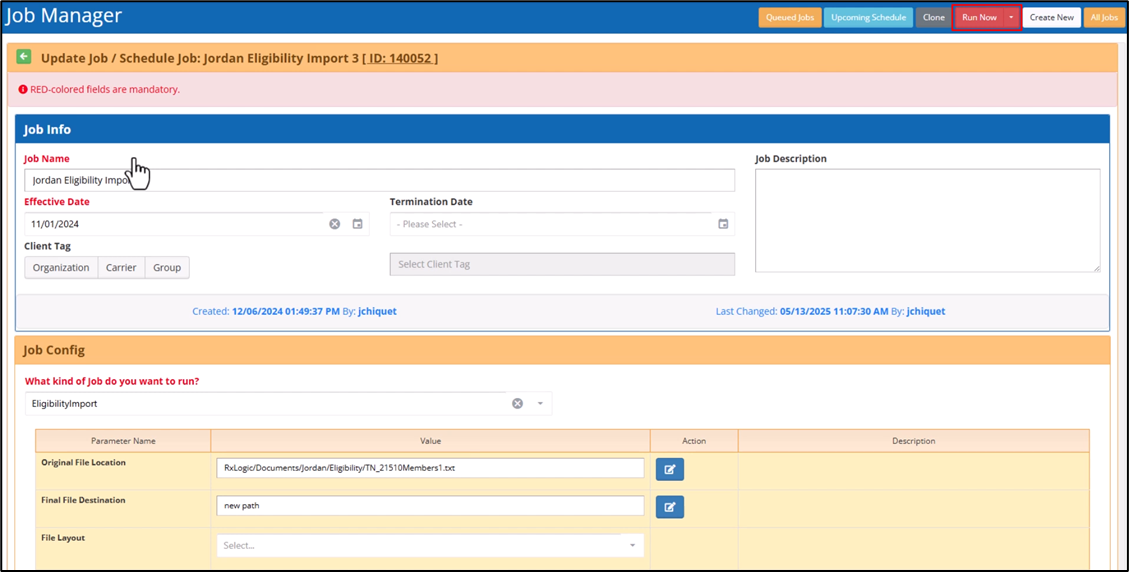
Running the Process
After setting everything up, click Run Now to process the input file.
Output File
Once the job has finished, the system will save the output file with the repricing results in a Logs folder withing the input file’s original folder.
The output file will have the same name as the input file, with a timestamp and a “results” label added to make it easier to identify after it has been downloaded.
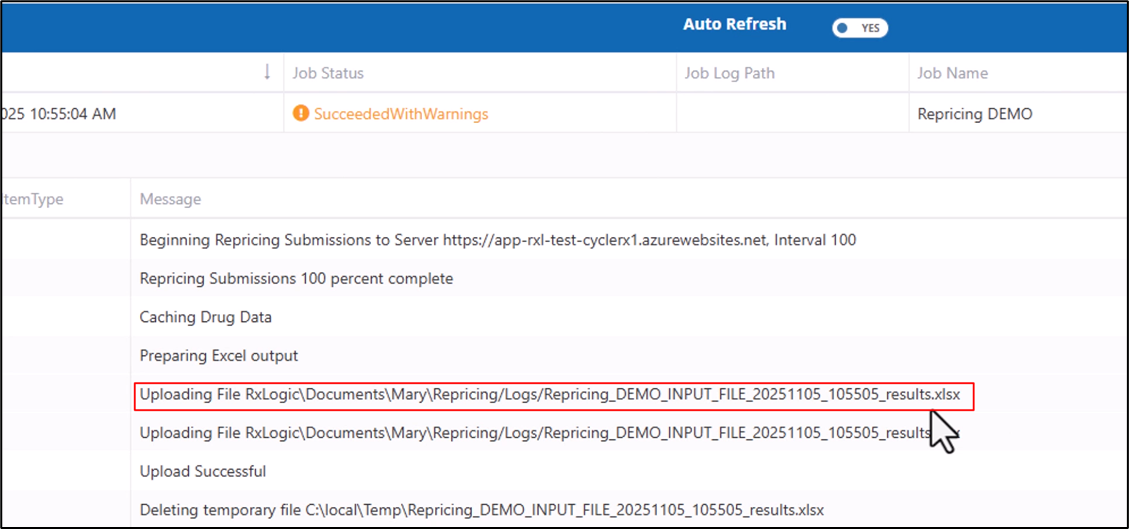
Repricing Results
The output file’s repricing results are organized into four tabs:
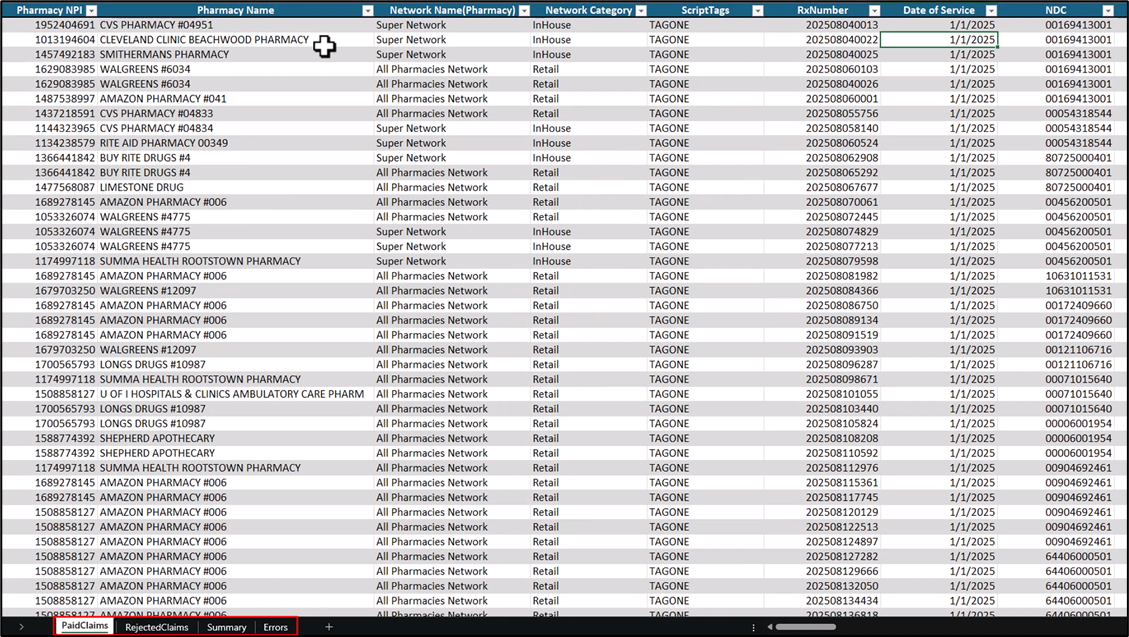
1. Paid Claims
The Paid Claims tab lists all claims that were successfully adjudicated, along with a detailed cost breakdown for each one. Here, you can compare the submitted and repriced cost components and quickly see the actual price differences in both dollar and amounts and percentages.
You can also filter the data to identify outlier drugs and leverage the detailed pricing information to help you optimize plan configurations and contract terms.
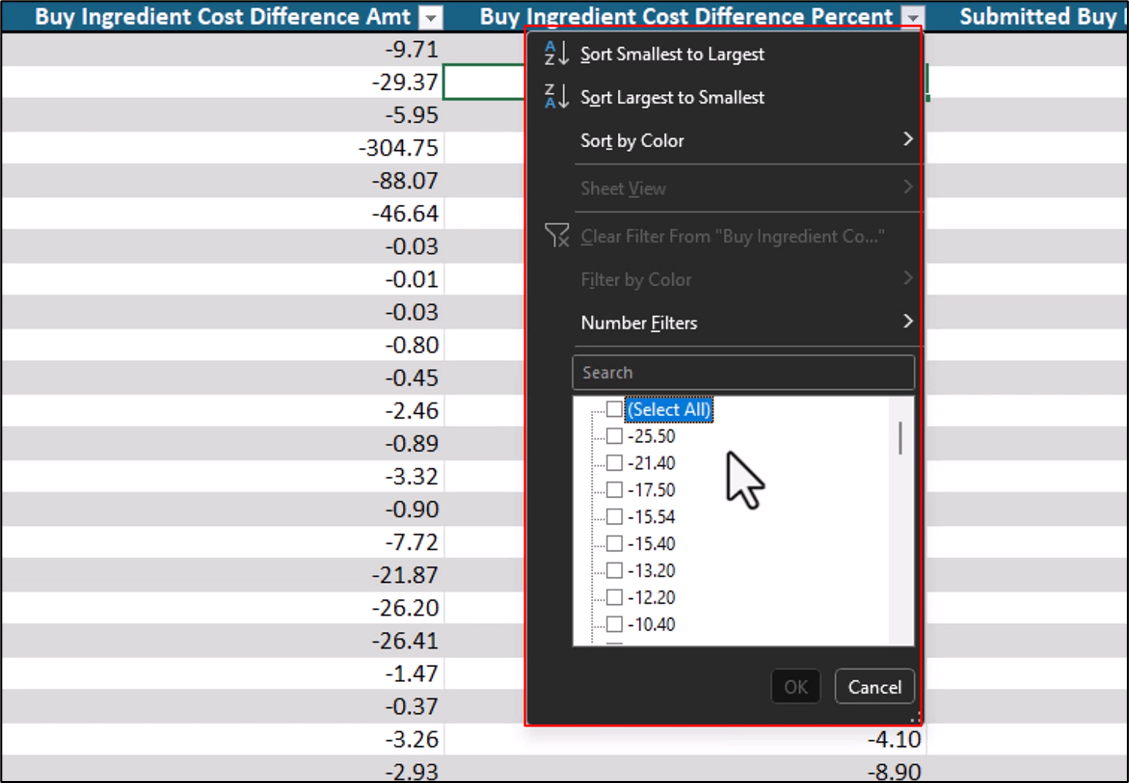
2. Rejected Claims
The Rejected Claims tab lists all claims that were rejected, along with the reason for the rejection.
3. Summary
The Summary tab displays the total amounts for each cost component across all paid claims, including total pharmacy payments and amounts billed to the client.
It also shows submitted and repriced price differentials in dollar amounts and percentages making it easier to compare results between different group pricing structures.
4. Errors
The Errors tab lists all claims that were not successfully adjudicated, allowing you to easily identify and address critical group configuration issues.