
RxLogic – Portal Admin Overview
The Portal Admin screen allows you to create new Pricing Portals, as well as manage existing ones. Portal sites can be customized to align with your brand identity or your clients’ brands. You can also change the text, links, and other information visible on different parts of the portal.
This guide demonstrates how to create or edit a Portal Admin.
Open Portal Admin
- From the left navigation menu, click Administration.
- Select Portal Admin from the submenu.

The Portal Admin screen will display.
Portal Admin Overview
On the left of the Portal Admin screen, you will find a list of all existing portals. On the right, you can create new portals and manage their appearance.
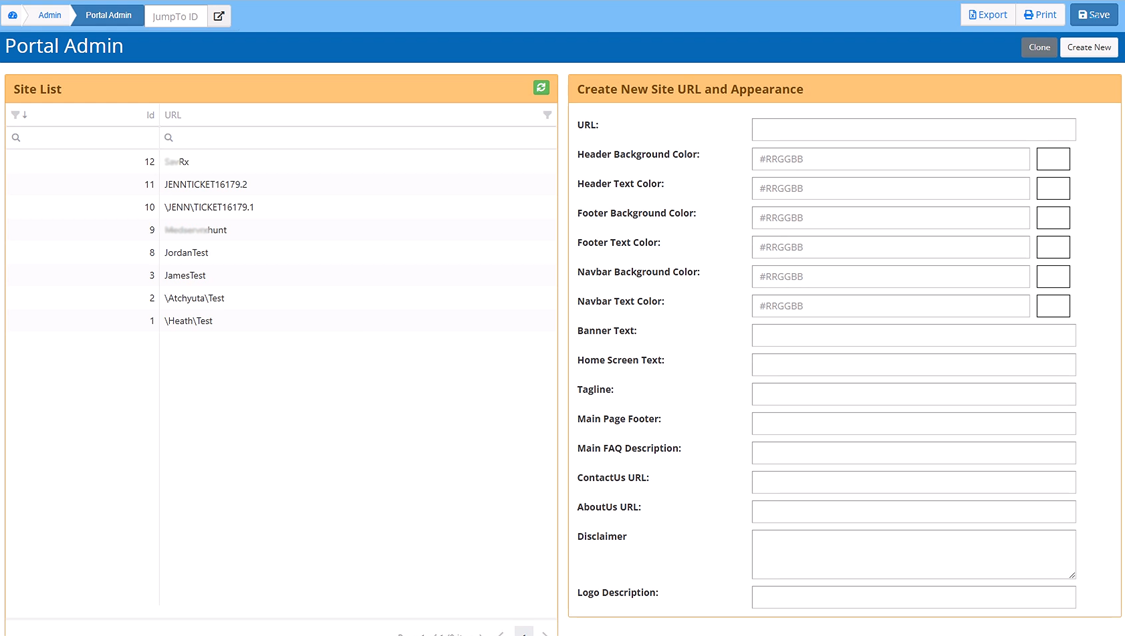
When you select a portal from the Site List, you can change its appearance using the fields on the right.
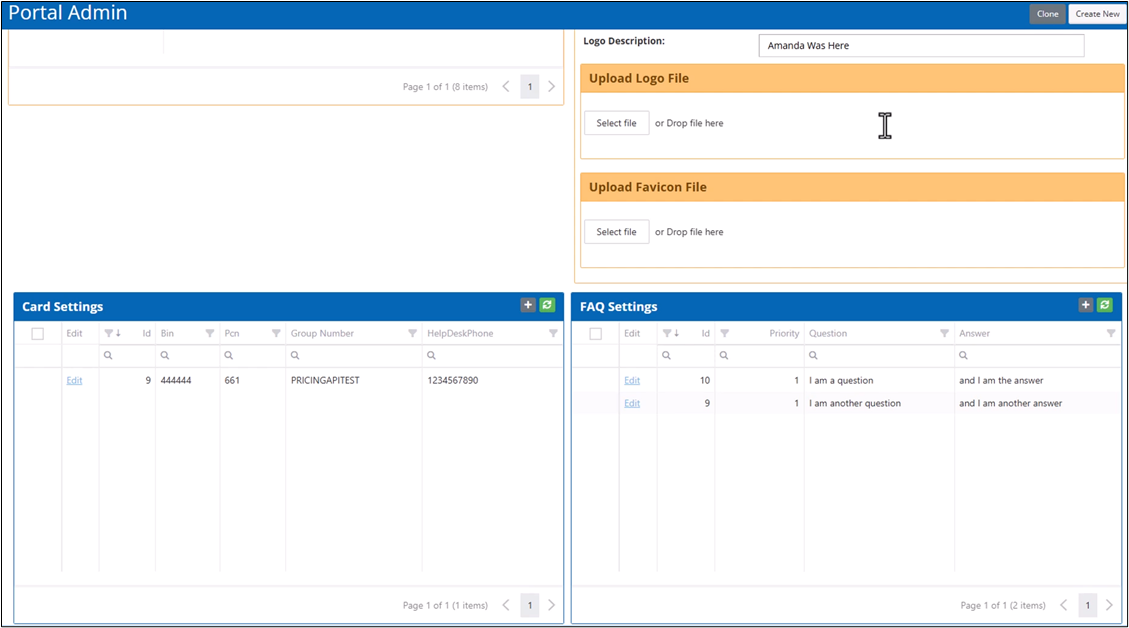
Below the site list, you will find the card and FAQ settings for the selected portal.
Create a New/Edit a Portal
To create a new portal:
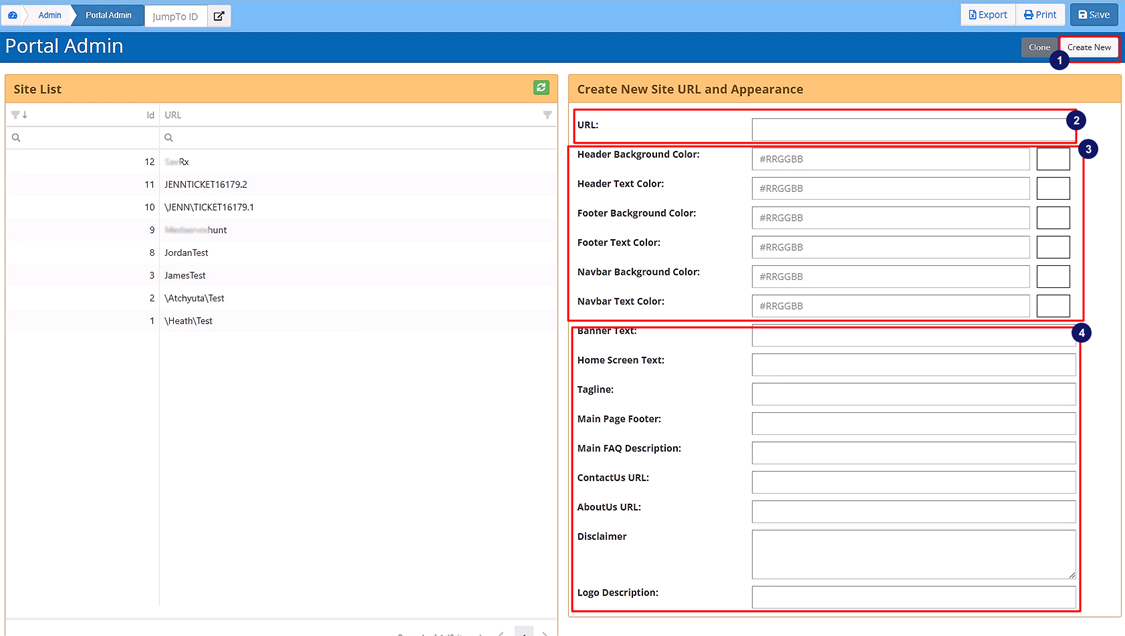
- Click Create New.
You can also make a copy of an existing portal by selecting Clone. - In the Create New Site URL and Appearance section, enter the portal configuration and assign colors for different areas using hex codes.
- Change the text and links that appear on the portal using the different text fields.
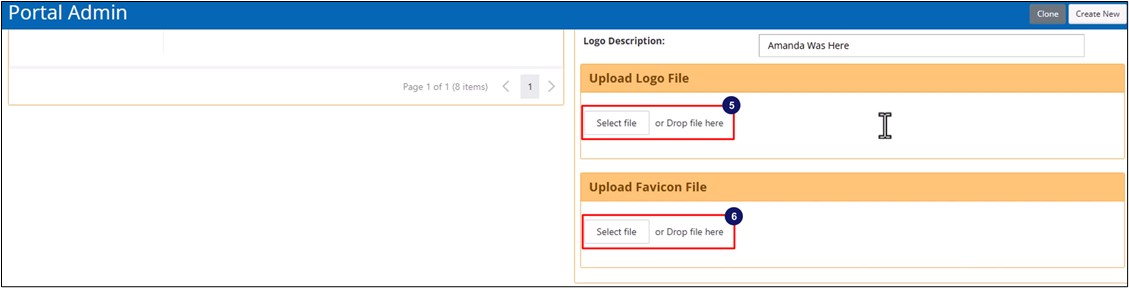
- In the Upload Logo area, select a file or drag and drop files to change the logo on the upper left corner of the portal.
- You can also change the icon that appears on the portal’s browser tab by uploading a different Favicon file.
Card Settings
On the lower half of the screen, you will find the Card Settings section, which lists all the cards for a selected portal. Members can download or print cards from the portal after performing a price check.
Add a New Card
- To add a new card, select the Plus (+) icon on the upper right.
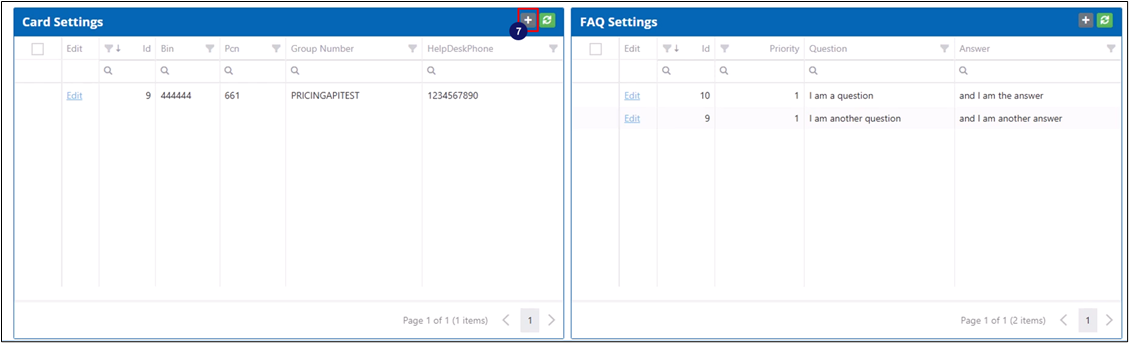
You can also modify an existing card by selecting Edit. This will open a new area below the Card Settings List.
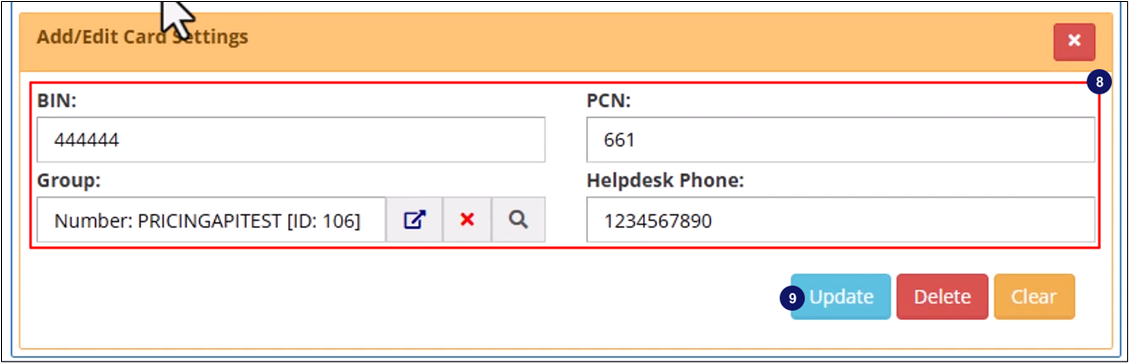
- Add or edit the BIN, PCN, Group Number and Helpdesk phone number.
You can select the Magnifying Glass icon to the right of the group field to open a list of existing groups that you can choose from.
If the field is already populated, selecting the external link icon will open the Group Manager in a new browser window where you can view and edit its configuration. You can also select X to clear the field.
- Select Add to create the new card or Update to save changes to an existing card.
Delete a Card
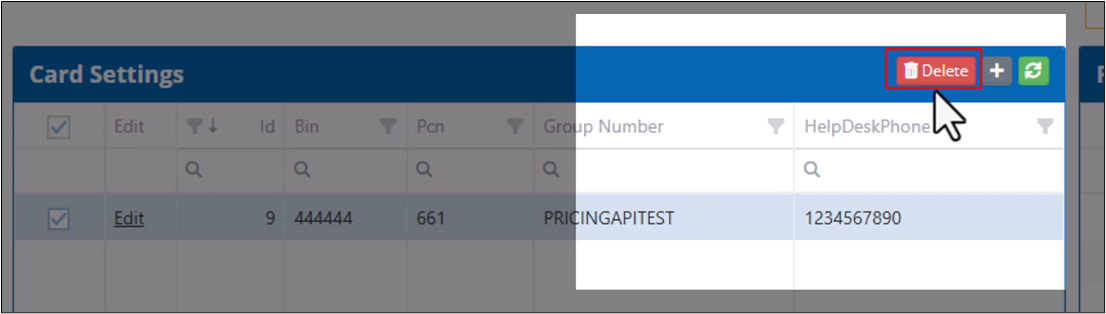
- To delete a card, select it.
- Click Delete in the top right corner of the card settings list.
FAQs Settings
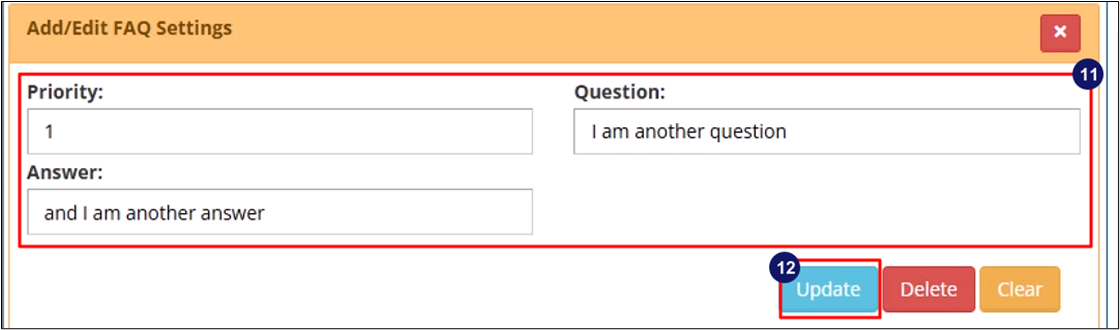
In the FAQ Settings section, you can add and edit entries to the portal’s FAQ section.
Add a New FAQ
- Click on the Plus (+)
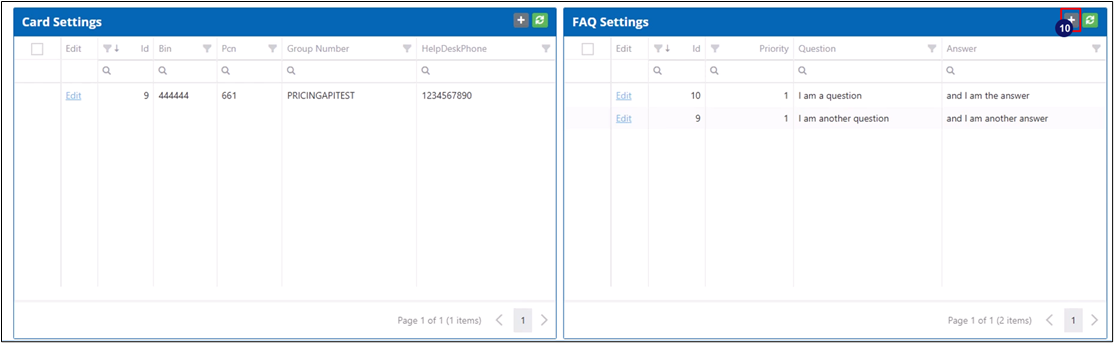
You can also select Edit to modify existing entry.
- Type in the question.
- Add the corresponding answer.
- Set the order of the FAQs on the portal using the values under Priority.
- Click Add or Update.
Delete an FAQ
- To delete an FAQ, select it.
- Click Delete on the uppoer right of the card settings list.

- After updating the Portal Admin configurations, click Save on the top right corner of the screen to save changes.
