Paid Claim Lookup allows you to use different search parameters to find specific paid and out of cycle reversal transactions and view their details. Once paid and reversed transactions have been processed by a claim cycle, any claim transactions that were netted out will no longer appear in the Paid Claim Lookup results.
Paid Claim Lookup does not include rejected, duplicate(paid)’ or Dupreversed (Reversal) claims. You can view these and other claim transactions in the Claim Activity and Transaction Details screens under the Claim menu.
In this guide, we will walk you through the Paid Claim Lookup screen and show how to navigate it.
Open Paid Claim Lookup
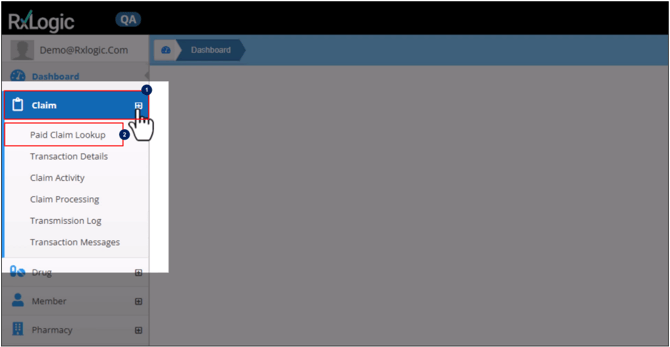
To open the Paid Claim Lookup screen:
- Click on Claim in the left navigation menu.
- Select Paid Claim Lookup from the dropdown.
The Paid Claim Lookup screen is divided into four sections that group related search fields together, allowing you to search based on transaction, member, pharmacy, and other general information. You can populate multiple fields and select options in different sections for each search.
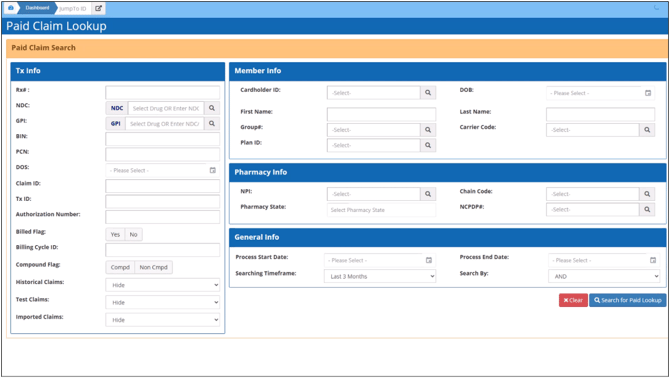
Let’s learn more about each section:
Transaction Information
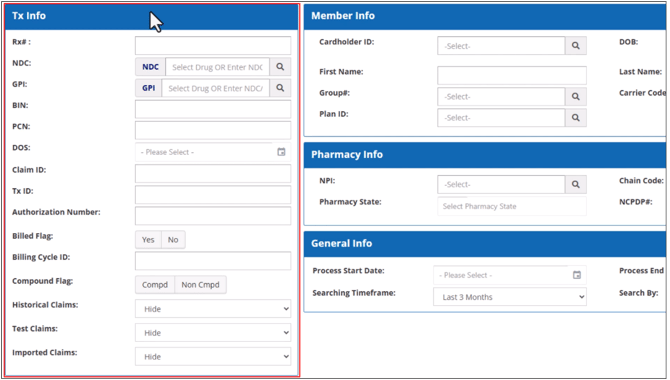
The TX or Transaction Info’s search fields allow you to find paid and reversed transactions based on the specific claim and transaction information entered.
You can enter details like the prescription number, claim and/or transaction ID’s, specific NDC or GPI numbers, BIN, PCN numbers, Date of Service, the billed flag, or a specific billing cycle ID. DOS or Date of Service refers to the date the pharmacy filled the prescription.
Using Transaction ID to Search for Paid Claims
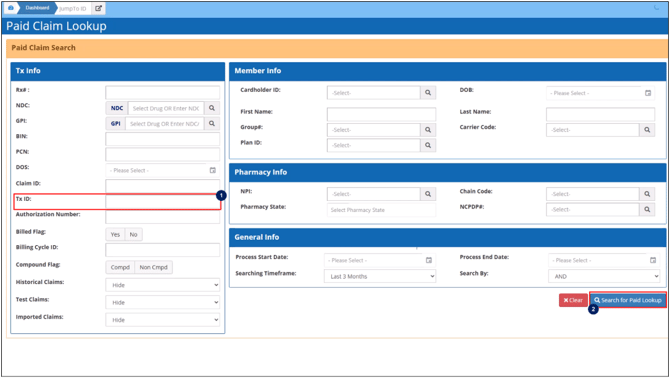
If you already know the transaction ID, you can search for a paid claim without having to select it from the search results grid as follows:
- Enter the Transaction ID in the Tx ID field.
- Click Search for Paid Lookup. This opens the Claim Lookup Details screen for the Tx ID entered.
Open Paid Claim Details Screen for a specific transaction Without Performing a Search
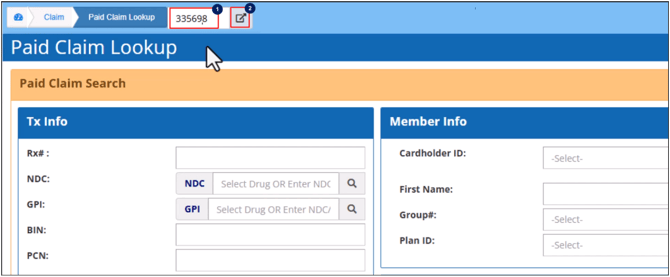
- Enter the Transaction ID in the Jump-to-ID field in the top left corner of the Paid Claim Lookup screen.
- Click on the Go-To button. This opens the Claim Lookup Details screen for the Tx ID entered.
Locating Transactions Using Lookup Options
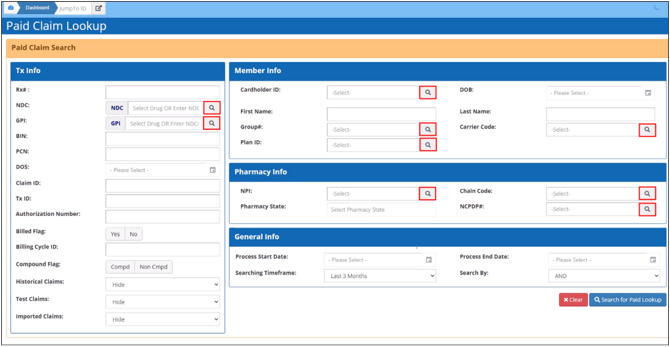
The NDC, GPI, Cardholder ID, Group#, Carrier Code, Plan ID, NPI, Chain Code, and NCPDP number fields have a Lookup icon. Clicking, the icon opens either a search window or a library window. You can search for and select an option from a list of existing records to populate the associated field. Search results will only display transactions that match the option(s) selected.
Locating Transactions based on NDC or GPI
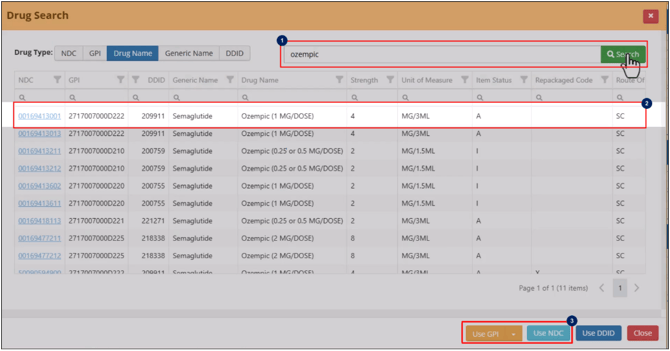
The NDC and GPI field Lookup options open the Drug Search window, where you can search for a specific drug using NDC, GPI, Drug Name, Generic Name, or DDID.

Once the search is complete, click on the line of the drug record in the grid to highlight it and click on the Use NDC or Use GPI button to populate the search field on the Paid Claim Search screen.
Locating Transactions based on Billed Flag
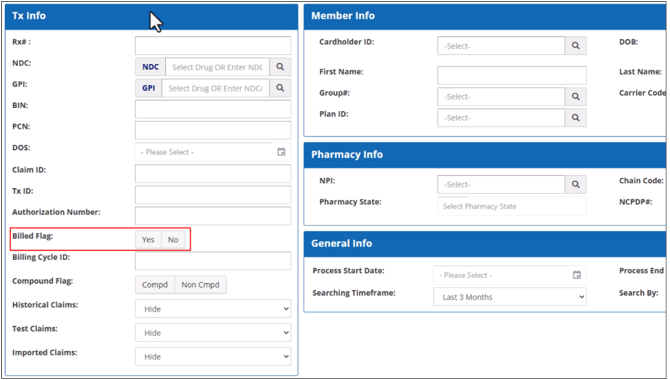
The Billed Flag button options are YES or NO. YES indicates that the transaction has been included in a billing cycle export file. No indicates that the transaction has not been included in a billing cycle export file yet. To filter data to only display transactions that have been included in a billing cycle export file, click on the YES button to select. To filter data to only display transactions that have not been included in a billing cycle export file, click on the No button to select.
Locating Transactions in a specific Billing Cycle Export File
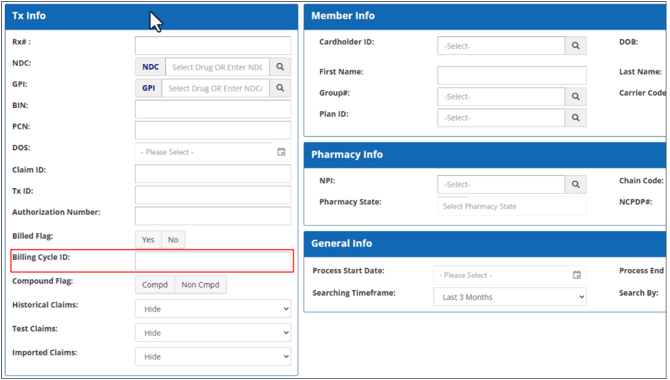
To locate the transactions included in a specific Billing Cycle export file, enter the Billing Cycle ID in the Billing Cycle ID field. The Billing Cycle ID is found on either the Payables Manager dashboard or Receivables Manager dashboard. The Billing Cycle ID is assigned when the Billing Cycle Export File is loaded into PayRec.
Locating transactions based on Compound Flag
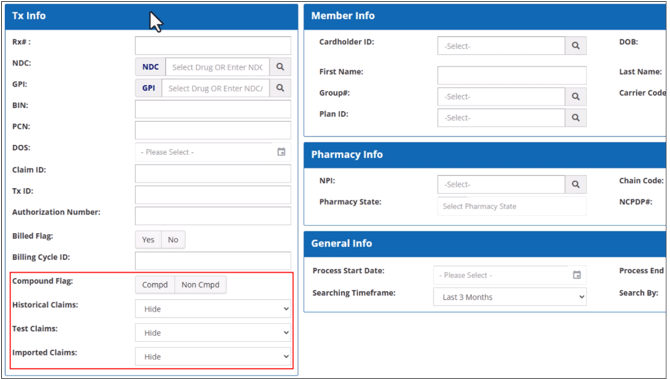
The Compound Flag button options are Compd or Non Cmpd. Compd indicates that the transaction is a compound. Non Cmpd indicates that the transaction is not a compound. To filter data to only display compound transactions, click on the Compd button to select. To filter data to only display non compound transactions, click on the Non Cmpd button to select.
Locating transactions based on Historical, Test and Imported Claim flags
The Historical, Test and Imported claims search fields each have a dropdown menu with these three options, Hide, Show and Show Only. The default option is set to HIDE. When set to Hide, these types of claims are excluded from the search results. When set to Show, these types of claims are included in the search results. When set to Show Only, only these types of claims are included in the search results.
Member’s Information
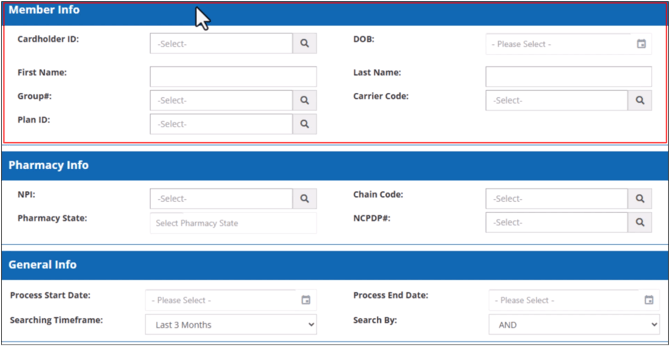
The Member Info search fields allow you to find paid and reversed transactions based on the group#, carrier code or plan ID. As well as specific member(s) cardholder ID (CHID), Date of Birth, First Name, and/or Last Name.
Pharmacy Information
The Pharmacy Info search fields allow you to find paid and reversed transactions based on the Pharmacy’s NPI number, Chain Code, Pharmacy State and NCPDP number.
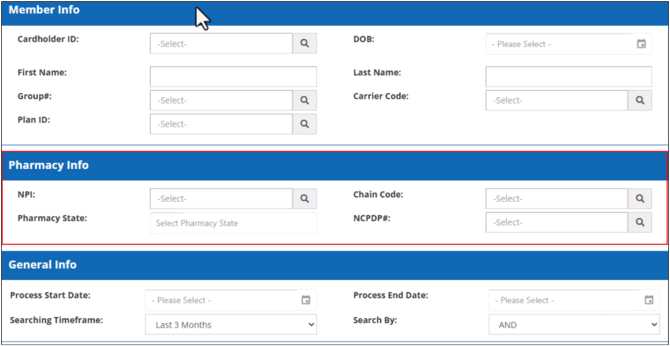
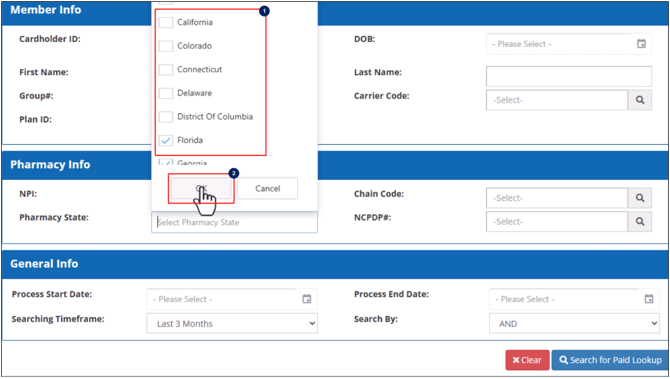
Locating transactions based on Pharmacy State(s)
- Click on the Pharmacy State field to open the selection menu. Click in the box to the left of the state(s) you want to select, adding a check mark to each State(s) box.
- Click OK; this closes the selection menu and adds your selections to the Pharmacy State field on the Paid Claim Search screen.
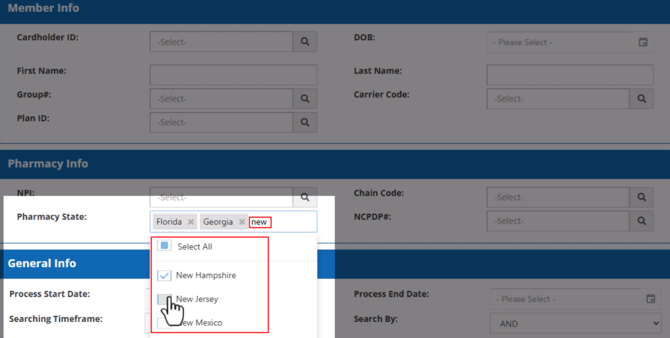
- Alternatively, you can type the state name in the field to filter the available options.
Library Window(s) Access and Search
Locating Transactions Using Member and Pharmacy Info Lookup Options
The Cardholder ID, Group#, Carrier Code, Plan ID, NPI, Chain Code and NCPDP# fields each have a Lookup icon.
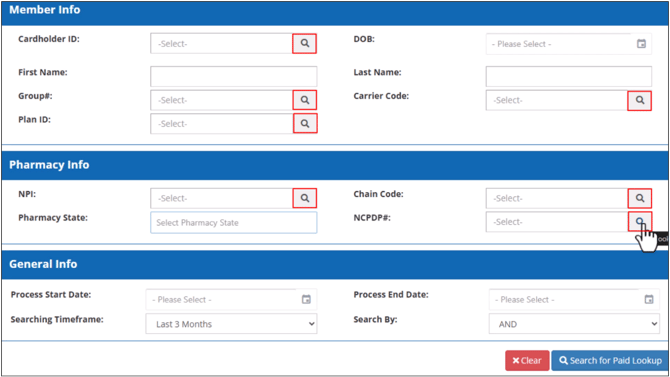
Clicking on the Lookup icon of a specific field opens the associated library window. These libraries have search and filter options available in the column headers of the library grid to assist with locating the specific type of record(s) you are looking for.
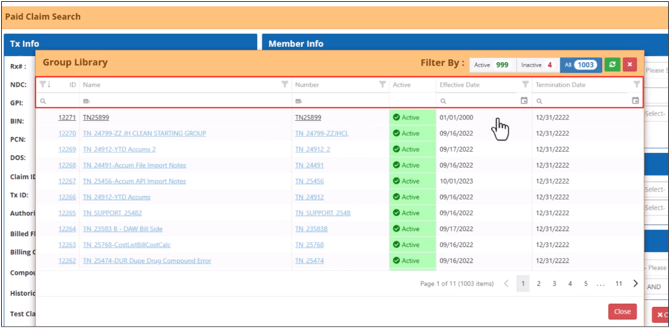
Selecting options on the Library Grid
Click anywhere on the line of the option you want to select in the library grid that is not a hyperlink to select it. The library grid screen will close and populate the search field on the Paid Claim Search screen with your selection.
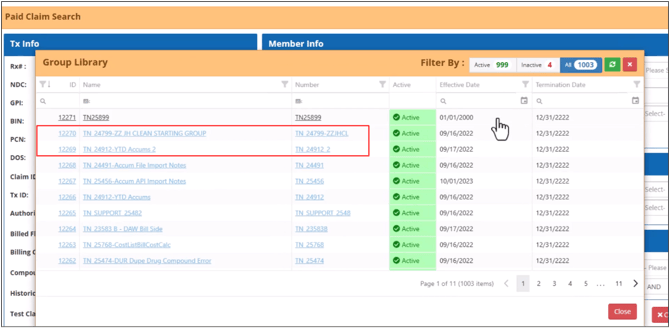
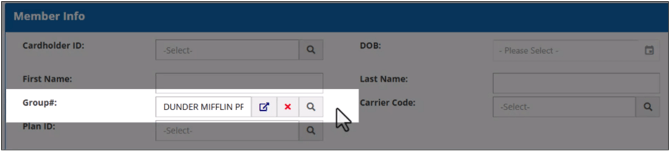
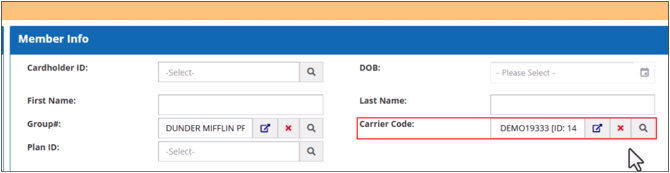
Please note that all the libraries function the same as above, except for the Carrier Code library grid. The Carrier Code library grid allows you to select more than one option.
Selecting Multiple Carrier Codes
To select multiple carrier codes in the Carrier Code library grid, follow these steps:
- Hover over the first column of the grid on the line of the first Carrier Code you want to select.
A box will appear on the screen.
- Click in the box, and a check mark will appear with blank boxes next to the other Carrier Code lines in the grid.
- Select as many Carrier Codes as you want, by clicking in the blank box for each Carrier Code.
- Click on the Add button.
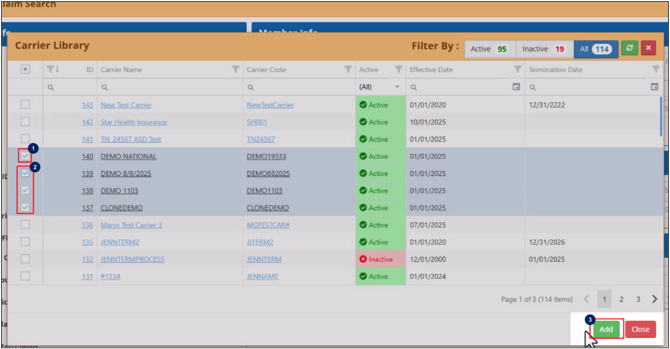
Once done, the Carrier Library screen will close, and the Carrier Code search field on the Paid Claim Search screen will be populated with the selected options.
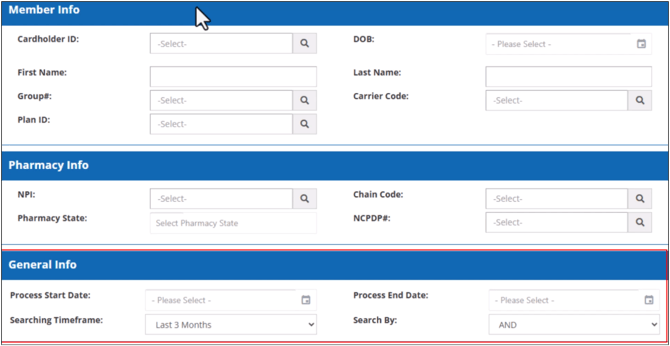
General Information
The General Info search field options allow you to limit your search to a specific timeframe or a process date range. The Search By option allows you to use AND or OR logic to determine which claims are included in the search results.
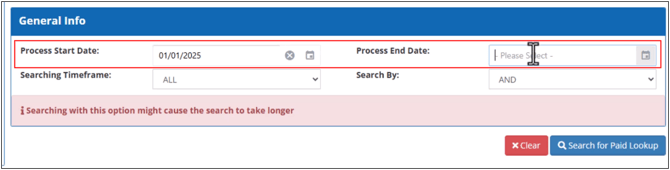
Locating Claims Based on Search Criteria Within a Specific Processing Date Range
The Process Start Date and Process End Date fields allow you to select a date range to limit your search to the claims processed within that range.
Locating Claims Based on Search Criteria for a Specific Timeframe
The Searching Timeframe field allows you to search for the claims processed within specific time periods. The Searching Timeframe options include Last 15 minutes, Last hour, Last 4 hours, Last 12 hours, Last 24 hours, Last week, Last 2 weeks, Last 3 Months, and ALL.
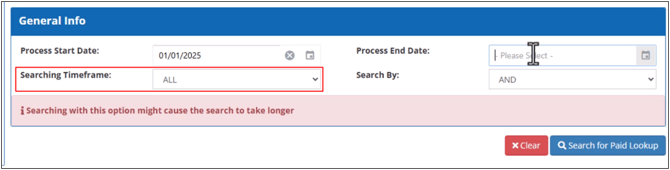
The default for Searching Timeframe is the Last 3 Months. This allows you to search for matching claims that have been processed within the last three months.
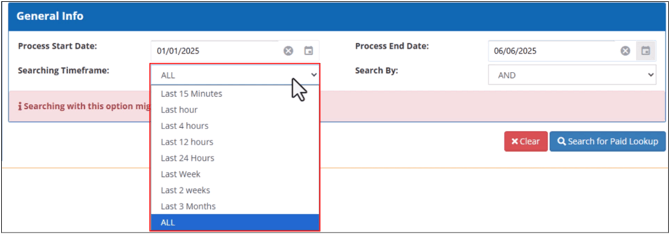
When selecting ALL, the search will return all processed claims in the system that match the selected search field options.
Locating Claims Based on Search Criteria using Search By Logic
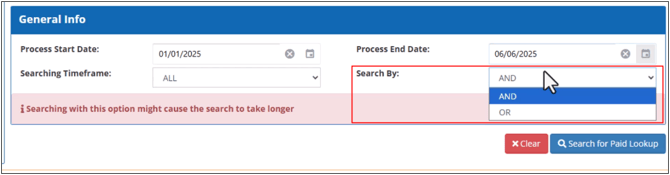
The Search By field has a dropdown menu with two options AND and OR.
AND: Option only returns the transactions that include all of the specified search field options. This is the default option.
OR: Option returns all transactions that contain at least one of the search field options that are set on the Paid Claim Search screen.
Clear Search Field Options
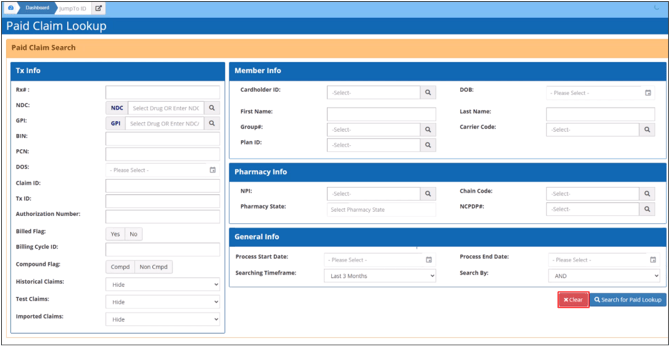
You can clear the selected search field options and reset Searching Timeframe and Search By fields to their default setting, by clicking on the Clear button.
Execute Search
To execute the search based on the selected options, click on the Search for Paid Lookup button.
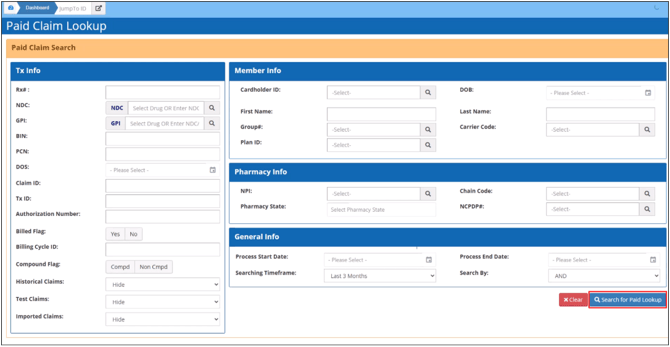
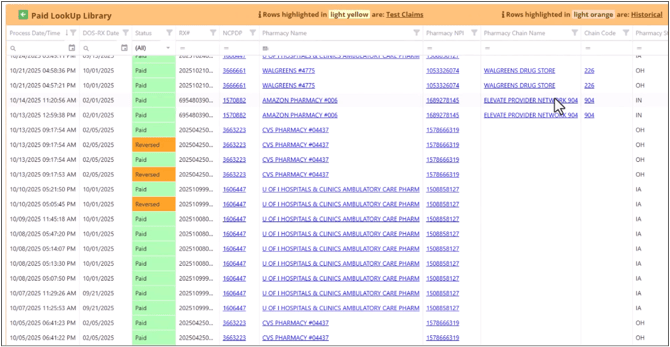
When the search completes, the application automatically takes you to the Paid Claim Lookup Results library, displaying all claims included in the search results.
Export Paid Claim Search Results
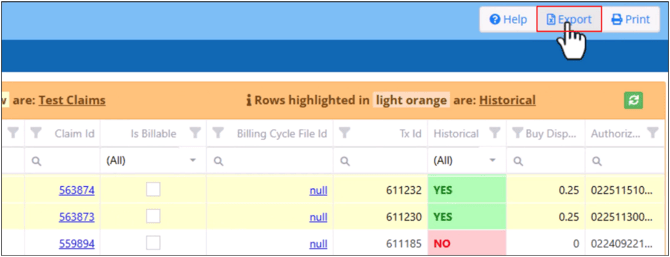
To export Paid Claim search results, click the Export button in the upper right corner of the screen. Default file name format is PaidClaimList-MM-DD-YYYY-’Hour’_’Minutes’_’am’ or ‘pm’.xlsx
Paid Claim Lookup Color Codes
The Paid-Claim-Lookup-Results-Library uses different highlight colors to identify different claim types and claim statuses. Different text colors are used for general info, hyperlinks, dollar values, quantities, and days supply.
- Test Claims: Highlighted in Yellow.
- Historical Claims: Highlighted in Orange.
- Paid Claims Status: Highlighted in Green.
- Reversed Claims Status: Highlighted in Orange.
- Reversed Claims Quantities and Days Supply: Values are displayed in red with a negative sign.
- Paid and Reversed Dollar Amounts: Negative values are displayed in red. Positive values are displayed in green.
- Hyperlinks: Displayed in Blue and underlined.
- General Information: Displayed in Black.
View More Claim Details
To view additional claim details, use the blue horizontal scroll bar at the bottom of the lookup grid to scroll to the right.
Search, Sort and Filter Search Results in Paid Lookup Library
You can sort, filter and search for the search results in the Paid Lookup Library using the corresponding column header options at the top of the grid.

Choose Additional Operators for the Search Term
The icons on the left of each column header search field enable you to apply additional filter options to the search results data for the specified search term.

Open Related Record(s) Details
Clicking on the hyperlink(s) will open the related record details in a new tab.
Access Paid Claim Lookup Details
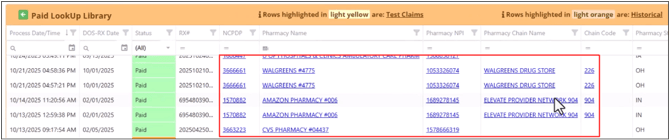
When you click anywhere on a claim in the grid that is not a hyperlink, the Paid Claim Lookup Details window opens on a new tab on the screen.
Navigating the Paid Claim Lookup Details Window
Claim Lookup Details Header
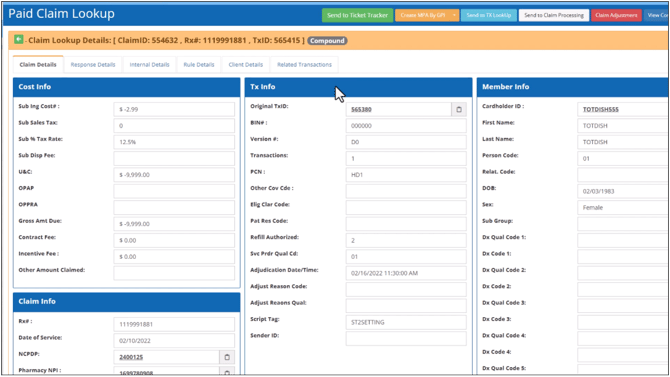
The Claim Lookup Details Header shows the ClaimID, Rx#, and TxID of the selected claim. This header also displays additional badges for Test, Compound, Keyed, Self Pay, and Historical claims as well as External Adjudicator and Exempt From Payables when applicable.
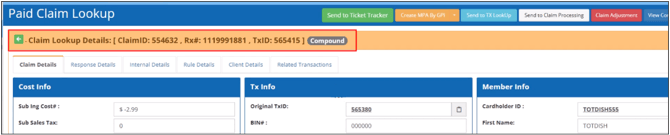
The Back arrow in the left corner of the Claim Lookup Details header takes you back to the Paid Claim Lookup search screen.
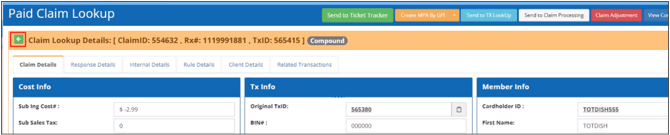
Transaction Message
Below the Claim Lookup Details header, a message informs whether you are viewing the most recent or latest transaction for the claim.
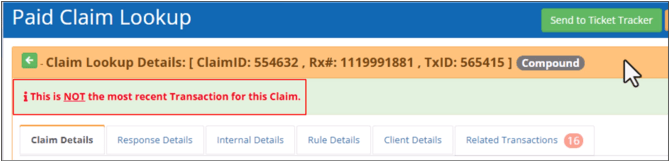
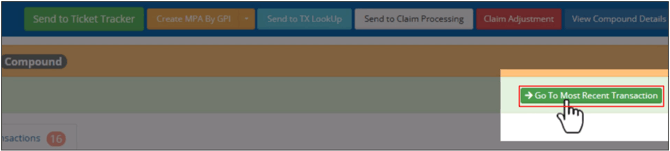
When the transaction is not the most recent one for the claim, a green Go To Most Recent Transaction button appears on the right side of the screen. Clicking on the button, opens the latest transaction for the claim.
Action Buttons
There are six action buttons in the Paid Claim Lookup header. These allow you to send the claim to another area of the application such as Ticket Tracker, Tx Lookup, Claim Processing and MPA Manager or open the Claim Adjustment screen or View Compound Details pop-up window.

- Send to Ticket Tracker: Sends the transaction to Ticket Tracker - Create New Support Ticket screen prepopulating it with the details from the transaction.
- Create MPA By GPI: Sends the transaction to MPA Manager - Create MPA screen prepopulating it with the details from the transaction using the GPI.
- Create MPA By ‘NDC’: Sends the transaction to MPA Manager - Create MPA screen prepopulating it with the details from the transaction using the NDC.
- Send to TX Lookup: Sends the transaction to Transaction Details screen displaying the details of the transaction.
- Send to Claim Processing: Sends the transaction to the Claim Processing screen.
- Claim Adjustment: Opens the Claim Adjustment screen populated with the claim details, where you can adjust the buy and sell side pricing amounts.
- View Compound Details: Opens the Compound Details pop-up window that shows claim details and the Status of each ingredient, Paid or Rejected with the rejection code, along with drug name, NDC, quantity and per unit pricing information.
Tabs
The Claim Lookup Details screen separates the claim information into six categories using tabs.
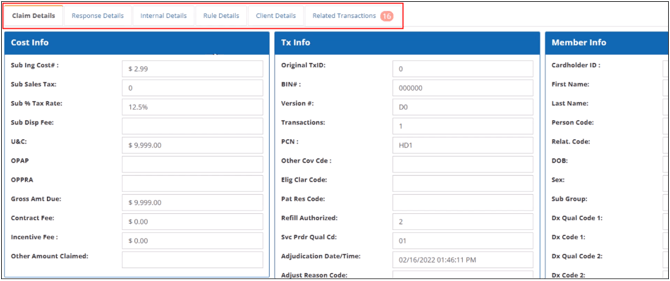
Claim Details Tab
The Claim Details tab shows the information submitted by the pharmacy grouped into sections.
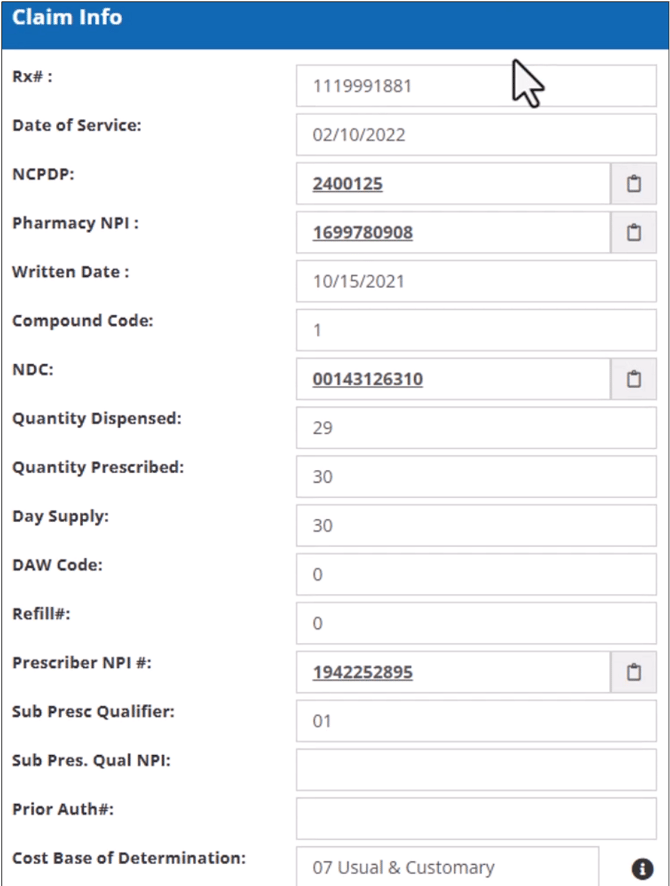
The NCPDP, Pharmacy NPI, NDC, and Prescriber NPI fields in this tab have a Copy button that enables you to copy the values to the clipboard.
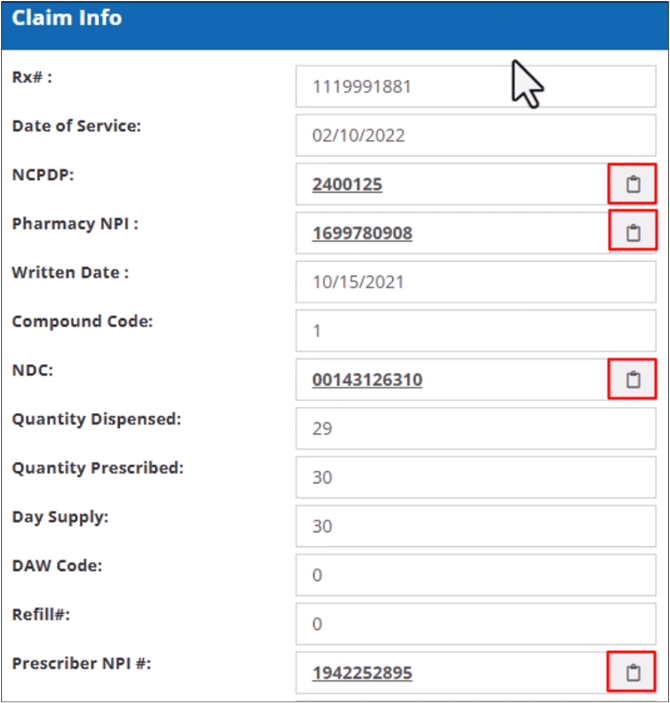
Clicking on the hyperlink(s) will open the related record details in a new tab.
Response Details Tab
The Response Details tab shows the adjudicated transactions information that was sent to the pharmacy.
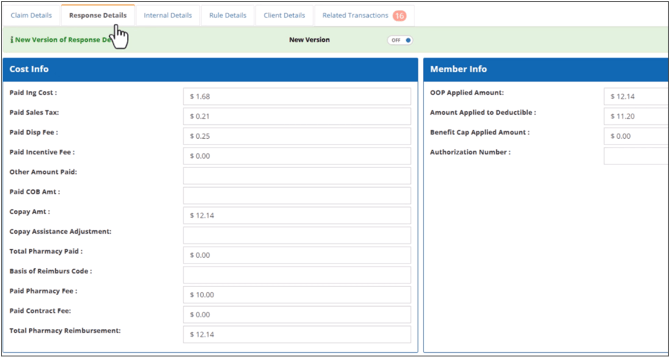
To view the New Version Response Details, toggle ‘ON’ the New Version toggle.
In this view, the plus and minus badges indicate if the values in the field(s) are added or subtracted from the Total Paid to Pharmacy. When a field contains a value if the badge is a plus, the values are highlighted green and if they are a minus, the values are highlighted red.
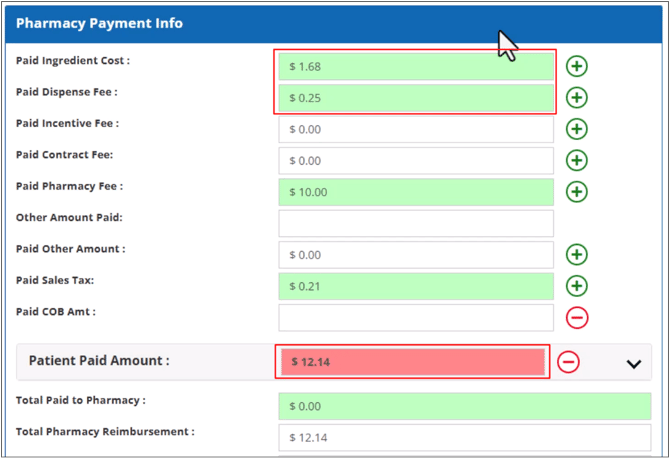
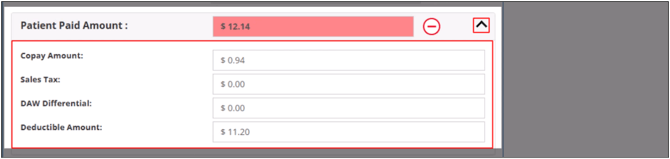
To view the deductions breakdown, click on the Arrow at the right of the Patient Paid Amount field.
You can view the final payment amounts at the bottom of the window.
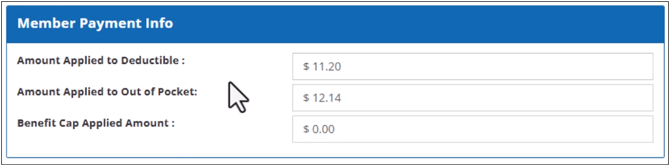
In the Member Payment Info section, the member’s plan accumulators are shown on the right half of the screen.
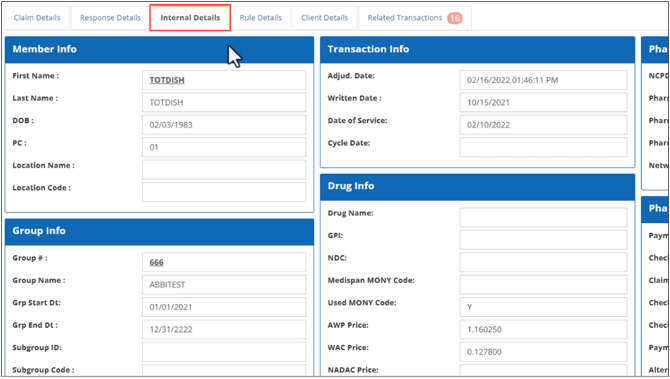
Internal Details Tab
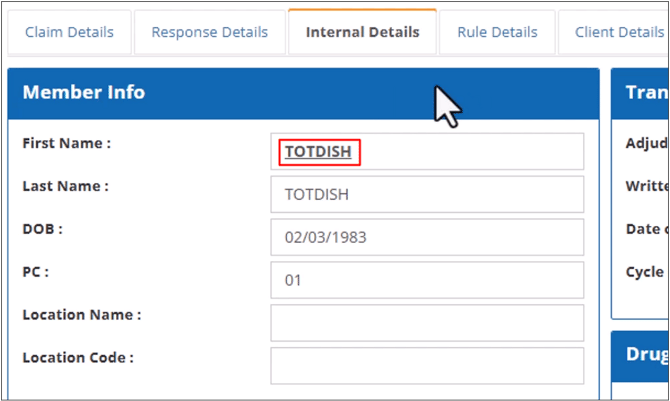
The Internal Details tab contains additional Member, Transaction, Pharmacy, Group, Drug, Pharmacy Payment, Plan, MPA, Process and Calculations information, grouped into their respective sections.
Clicking on the hyperlink(s) will open the related record details in a new tab.
Rule Details Tab
The Rules Details tab shows the Rules Triggered on the left side of the screen. The right side of the screen displays the Process Rule Trigger; this section shows whether the rule was triggered by a plan default rules or a process rule.
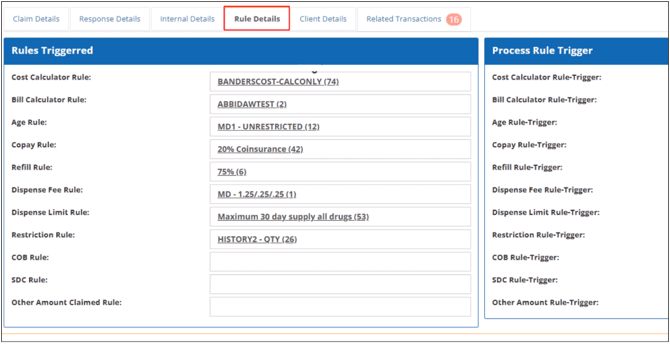
Clicking on the rules hyperlink, will open the selected rule’s configuration screen.
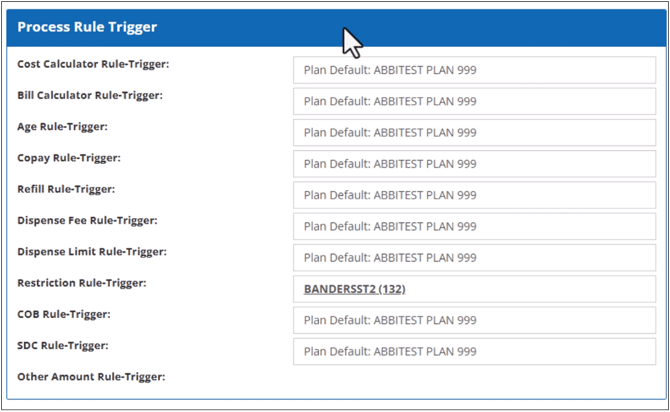
Clicking on the Plan-Default hyperlink, will open the Plan Manager.
Clicking on the Process Rule hyperlink, will open the Process Rule’s Configuration screen.
Client Details Tab
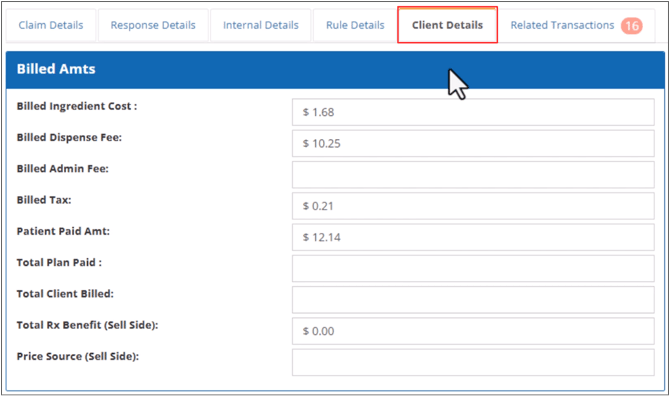
The Client Details tab shows a detailed breakdown of the amount billed to the client. It also shows the sell side Total Rx Benefit and Price Source.
Related Transactions Tab
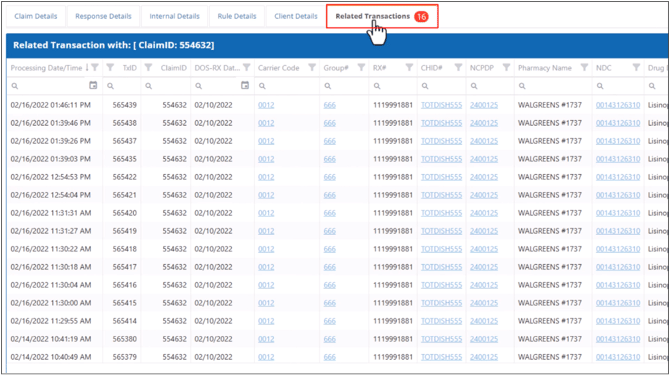
The Related Transactions tab displays the claim’s transaction history in the Related Transaction with grid. The number of related transactions associated with the claim is displayed in the Related Transactions tab.
Clicking on the hyperlink(s) in the Related Transaction with grid will open the related record details in a new tab.
You can sort, filter, and search for the related transactions in the Related Transaction with grid using the corresponding column header options at the top of the grid.
The icons on the left of each column header field in the Related Transaction with grid enable you to apply additional filter options to the transaction data in the grid.