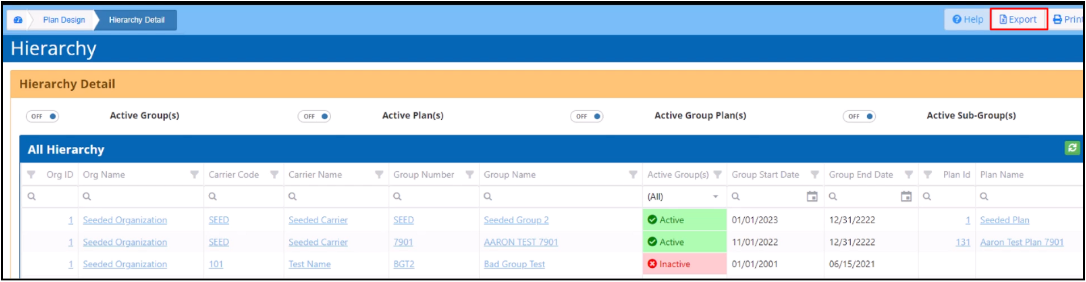
This guide shows you the RxLogic’s Hierarchy Details and how to navigate it.
RxLogic Hierarchy
The RxLogic hierarchy is comprised of the following components:
Organizations ->Carriers -> Groups -> Plans -> Subgroups
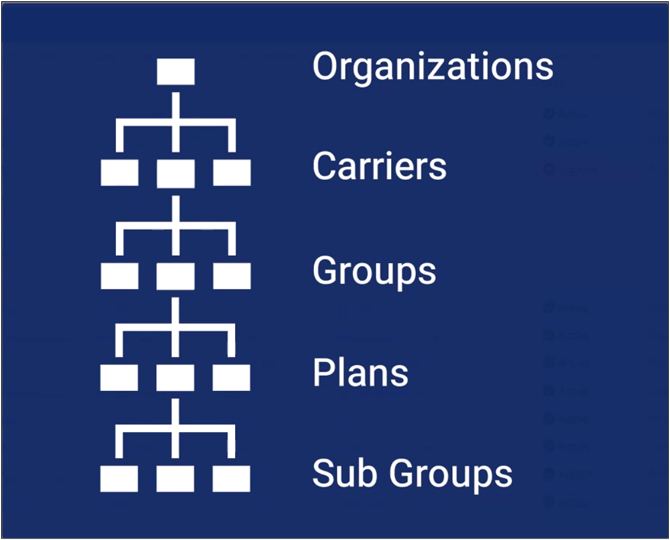
Organizations
These are at the top of the hierarchy structure. Organizations are associated with Carriers. Only one organization can be associated with a carrier at a time. However, an organization can be associated with multiple carriers.
Groups
Groups are associated with the Carriers with specific date ranges. A group can be associated with more than one carrier at the same time, but the start and end dates of the associations should not overlap.
Plans
Plans are associated with Groups with specific date ranges. A plan can be associated with more than one group at a time. Multiple plans can be associated with a given group, but the start and end dates of the associations should not overlap.
Subgroups
Groups are also associated with Subgroups. A group can be associated with multiple subgroups, but a given subgroup record is only associated with one group.
Open Hierarchy Details
To open the Hierarchy Detail screen:
-
Click on the Plan Design in the left navigation menu.
-
Select Hierarchy Detail from the dropdown.
This opens the Hierarchy Detail screen.
Navigating Hierarchy Detail Screen
The Hierarchy Detail screen is a visualization tool that shows how hierarchy objects relate to one another based on how they are configured in your plan design. It provides a grid view of an organization’s plan design setup in the application and displays a row for each hierarchy structure, which shows the carrier, group, plan, and subgroup objects associated with the organization in more detail.
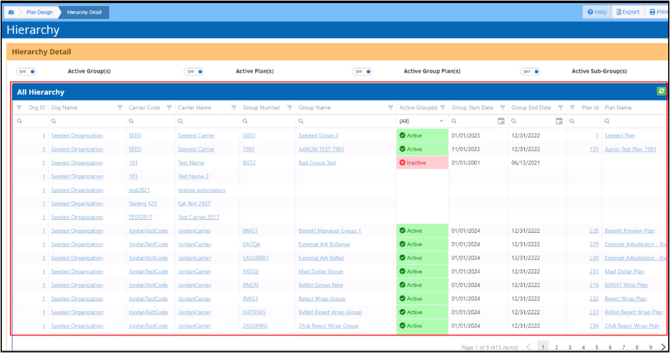
Each row in the All-Hierarchy grid begins with the Org ID, which is the unique number the system assigns to an organization record when it is created, followed by the Organization Name.
The columns to the right display the Carrier Code and Carrier Name associated with the organization.
These are followed by the Group Number and Group Name associated with the carrier, along with the group’s status, start date, and end date.
Scrolling to the right reveals additional columns with more details.
The Plan ID is the unique number the system assigns to a plan record when it is created.
Next to the Plan ID is the Plan Name associated with the group, along with the plan’s status, start date, and end date.
To the right of the plan details are the group details associated with the plan, which include each group’s status, effective date, and end date.
Following the group details is the Subgroup ID number or the unique number the system assigns to a Subgroup record when it is created.
Then the Subgroup Name that the group is associated with along with the subgroup’s status, start date and end date.
Please note that the fields in a column are populated only if they are configured in the plan design.
This screen is very useful when building out hierarchy structures in the application to ensure you have built all components and have made the hierarchy associations necessary for claims to be adjudicated.
To adjudicate a claim, a group must have an active plan associated with it and a carrier associated with an organization.
Please note that subgroups are optional when creating or updating plan designs.
Navigating All-Hierarchy Grid
Filter the Grid
There are four toggle buttons above the All-Hierarchy grid that can be used to filter the data in the grid.:
-
Active Group(s)
-
Active Plan(s)
-
Active Group Plan(s)
-
Active Sub-Group(s)
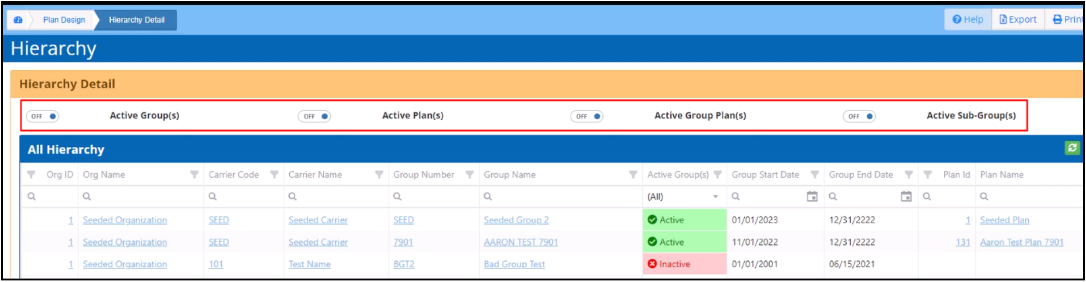
There are also filtering options on each of the columns.
Export Grid Data
The data in the grid can be exported using the Export button in the upper right corner of the screen.