Subgroup Manager Overview
The Subgroup Manager module allows you to create new subgroups and manage the existing ones. In the hierarchy structure, Subgroups fall under Groups. They let you organize a group’s members into different subsets, each having its own properties and rules that are independent of the parent group’s rules.
When pharmacies enter a group number to process a transaction, the application will automatically identify if the member belongs to a subgroup and apply special rules associated with that subgroup, before or instead of the group’s rules.
This guide helps you navigate the Subgroup Manager and understand its features in more depth.
Open Subgroup Manager
To open the Subgroup Manager:
- Click on the Plan Design in the left navigation menu.
- Select Subgroup Manager from the dropdown list.
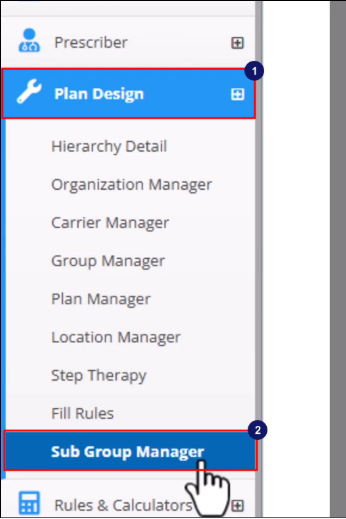
The Subgroup Manager interface will appear on the screen with all existing subgroups along with basic details such as group numbers and term dates.
Navigating the Subgroup Manager
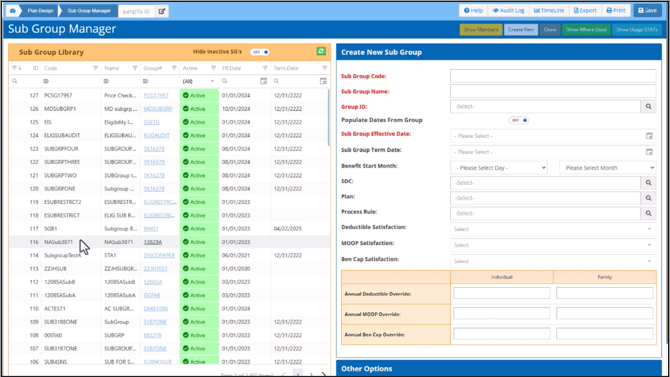
View Additional Details and Properties
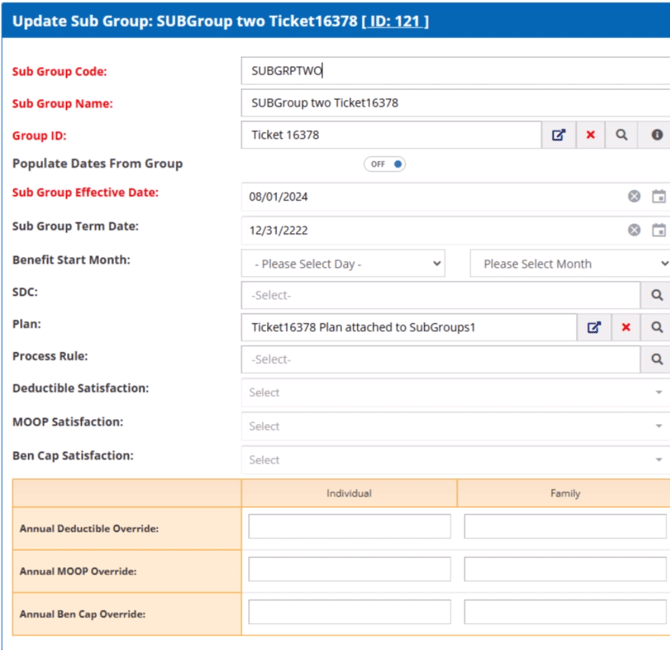
When you select a subgroup from the list, the additional details and properties for the subgroup will appear on the right side of the screen.
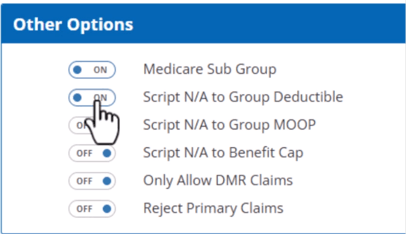
Enable/Disable Additional Rules
With the Other Options section in the lower right, you can enable or disable additional rules for the subgroup.
Access Subgroup Lookup Window
While creating or updating the subgroups, you can click on the Magnifying Glass icon in certain fields to open a lookup window that allows you to choose from a list of available options.
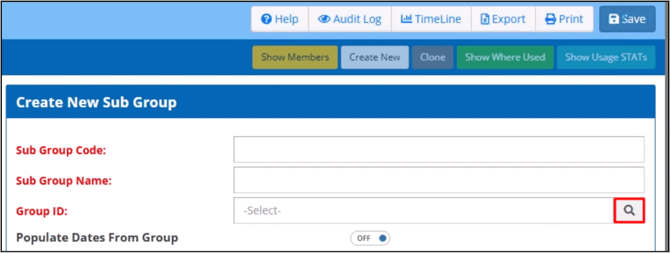
Note: Ensure to fill in all the required fields before saving a subgroup record.
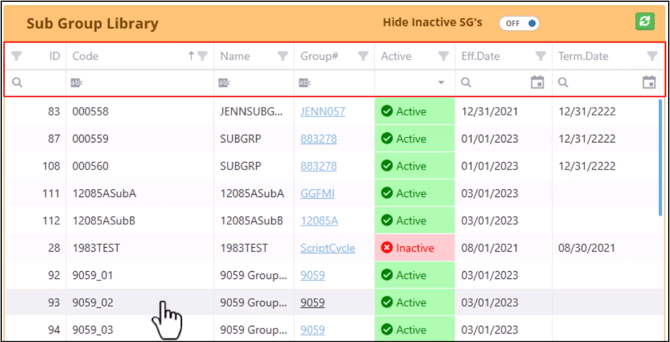
Search, Sort or Filter Subgroups
With column header options, you can search, sort and filter the records.
Hide/Show Inactive Subgroups
Toggle the switch on the right side of the subgroup library’s title bar to show or hide the inactive subgroups.
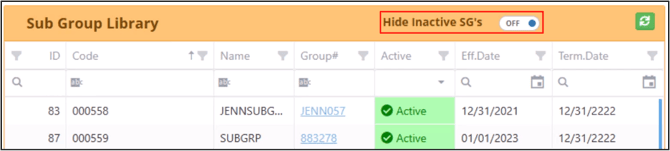
You can also select an option from the dropdown list below the Active column’s header.
Add Effective and Term Dates
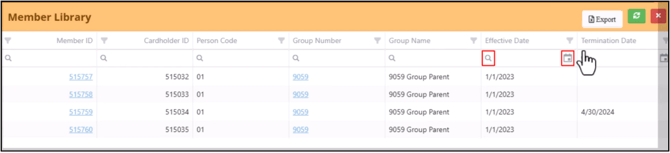
For effective and term date columns, you can click on the Magnifying Glass icon to specify search operators.
By clicking on the Calendar icon, you can choose a date.
View Subgroup Members
Click on the Show Members option at the top right corner of the Subgroup Manager screen.
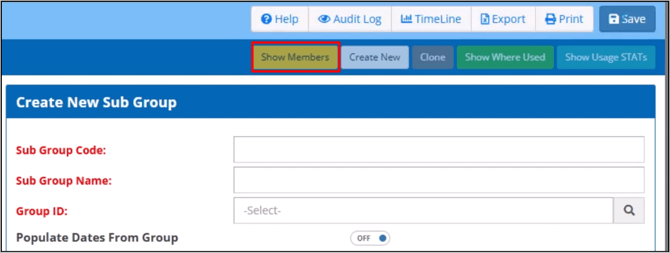
This opens a new window listing all members enrolled under the selected subgroup.
Access Member Manager
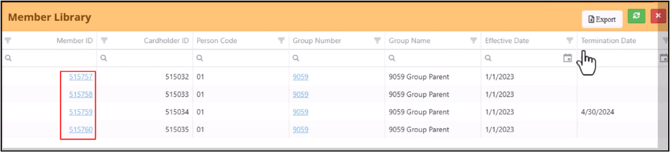
Click on the Member ID link to open Member Manager in a new browser tab.
Access Group Manager
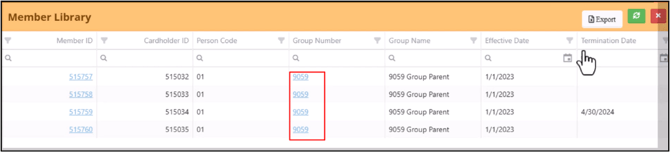
Click on the Group links to open the Group Manager in a new browser tab.
Duplicate a Subgroup
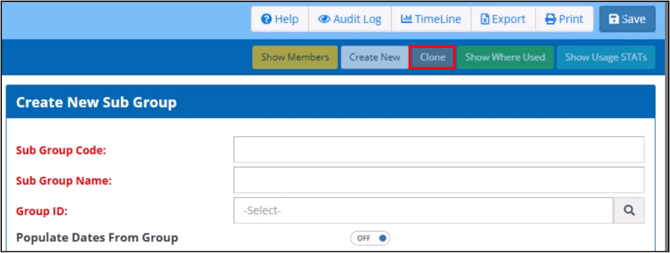
Click on the Clone button to create a copy of the selected subgroup.
Create a New Subgroup
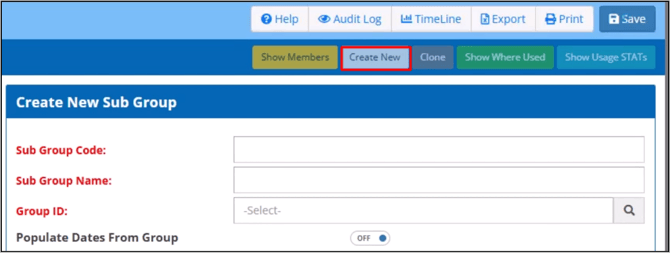
Click on the Create New button to clear all the fields and create a new subgroup from scratch.
Update a Subgroup
Select a subgroup to edit, make the desired changes and click Save.
Delete a Subgroup
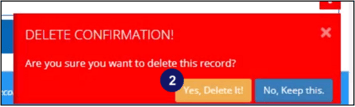
- Click on the Trash icon.

- Click Yes to confirm deletion at the bottom right of the screen.
View Subgroup Edit History
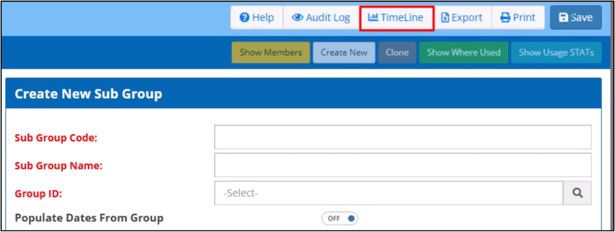
Clicking on the Timeline button opens all revisions and edits made to the selected subgroup in a new browser tab.
Export
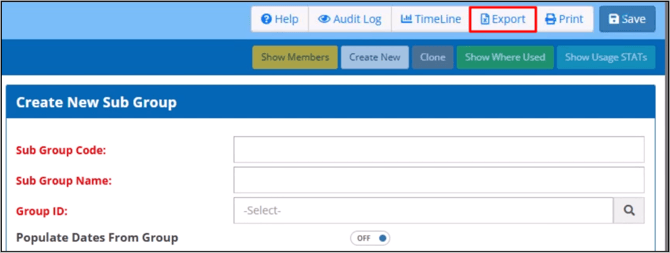
To export the subgroup list to an Excel file, click on the Export button.
What would you like to learn about next?